If one dashboard cannot tell you what changed, what is blocked, and what can be rolled back, it is not control. It is just a nicer place to hunt for problems.
When you sign in, do you need to ask where the files are, where the mailbox is, who touched DNS, and whether SSL is still alive? That is not a beginner problem. That is a stack problem with a friendly interface stapled on top.
The reason this matters is boring and important. Domain ownership, DNS routing, file access, database settings, and email delivery are separate moving parts, even when the dashboard makes them look like one thing. If you want a quick reality check on the domain side, ICANN Lookup tells you who actually controls the registration record. If you want a reminder that WordPress still depends on files, configuration, and security settings that live below the pretty buttons, WordPress advanced administration docs are less romantic and more useful than most tutorials. Good. That is the point.
In this guide, I will show you what a real control panel should contain, what to do in your first 30 minutes, how to separate website changes from email and DNS changes, and how to use backups, security tools, and support without improvising like a person trying to assemble furniture from a bad diagram.
Written by Felix Rowan · Updated June 29, 2026
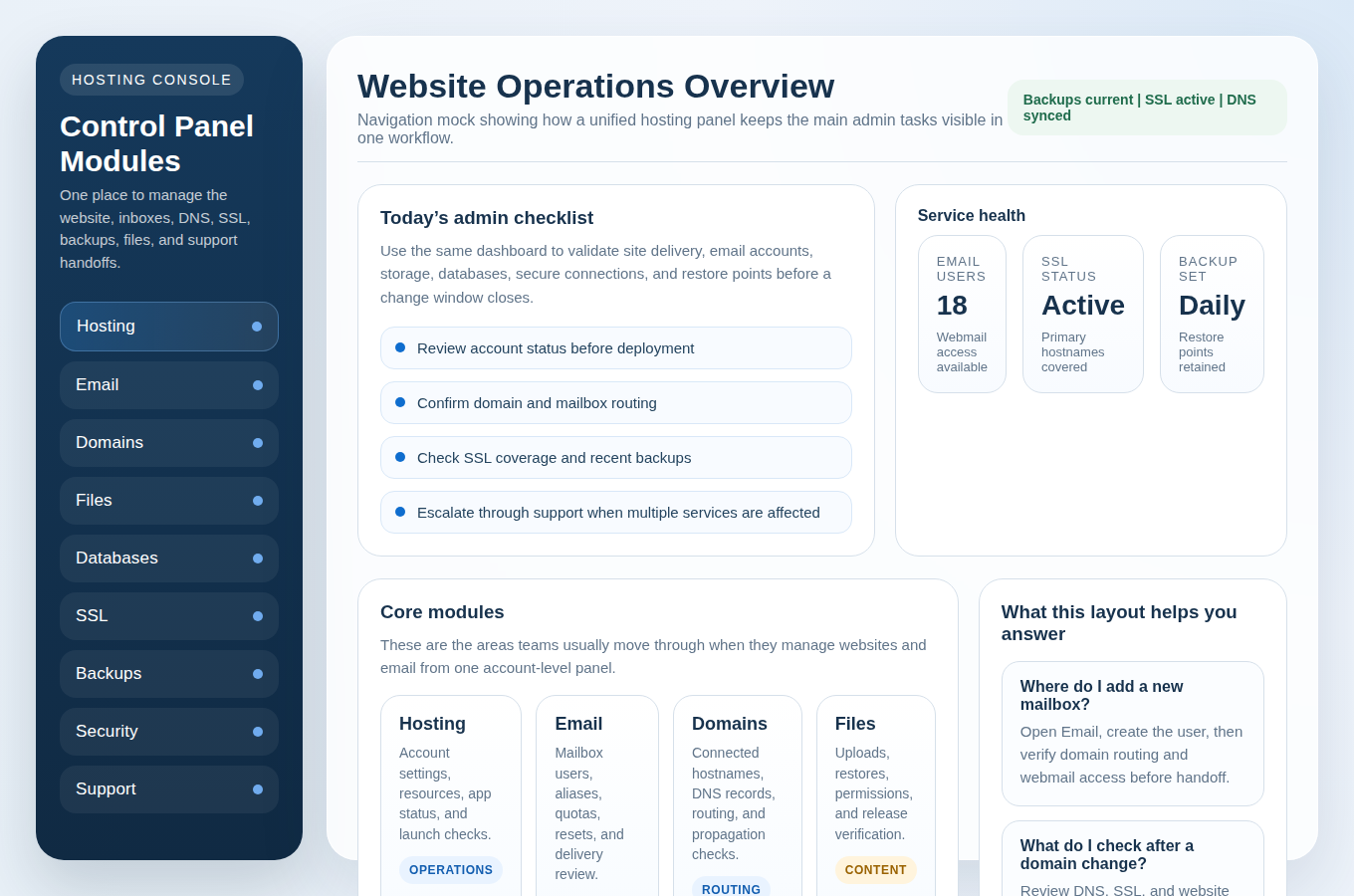
What “one dashboard” should mean
A control panel is not a decorative dashboard with a search bar and a vaguely optimistic logo. It should be the one place where the owner can see the state of the site, the mail system, the domain, and the recovery path. If the panel only lets you make changes but not verify them, it is missing the point.
For this site, a useful dashboard means you can manage Website Hosting, Email Hosting, Domains & DNS, file access, database access, Security & Backups, and support from the same login. Not one of those should require a scavenger hunt through three unrelated admin areas and a prayer.
| Area | What you should be able to do | Red flag if missing |
|---|---|---|
| Hosting | See site status, resource use, domains, and deployment tools. | You can change settings but cannot tell which site is live. |
| Create accounts, aliases, and mailbox access without opening a ticket. | Mail changes happen somewhere else, or not at all. | |
| Domains & DNS | Edit A, AAAA, CNAME, MX, and TXT records with clear validation. | DNS is treated like a secret ritual instead of a routing layer. |
| Files | Upload, inspect, and restore site files safely. | File access requires support for basic maintenance. |
| Databases | Create databases, assign users, and review import/export options. | Database changes are opaque or shared across unrelated sites. |
| Backups | See history, retention, and restore points before trouble starts. | You only learn about backups when you need one. |
| Security | Check SSL, alerts, and basic hardening controls. | Security is treated like marketing instead of configuration. |
| Support | Collect logs, versions, and timestamps before opening a case. | You are forced to explain the problem from scratch every time. |
The right mental model is simple: hosting runs the site, DNS points traffic, email handles mail, databases store structured content, backups give you a way back, and support helps you verify the evidence. If the control panel hides any of that, it is not simplifying your work. It is delaying the bill.
Your first 30 minutes
Do not start by clicking the prettiest tile. Start by checking the boring facts. If something is wrong on day one, it is usually because the wrong thing was assumed to be right.
- Sign in and confirm the account role. Make sure you are looking at the right user, site, or client space. If there are multiple domains, do not trust the default landing page to tell you which one you are holding.
- Verify the domain record. Use the Domains & DNS area and, if needed, compare it with ICANN Lookup. The dashboard says what the provider sees; ICANN tells you what the registry sees. Those are not the same sentence.
- Check SSL status. If HTTPS is pending, expired, or not forced, fix that before you spend time on cosmetic changes. Security problems love distraction.
- Locate the main sections. You should know where to find files, databases, email, backups, DNS, and security without using search every time. Search is for speed. It is not a substitute for knowing where the controls live.
- Check support contact paths. Know where to open a case, where to read status updates, and where to find account information if the problem escalates.
Here is the practical version: if you cannot complete those five checks in the first half hour, the panel is too confusing for real work. That is not a personal failure. It is a design failure, which is often harder to admit and easier to fix.
Daily workflow overview
Most mistakes come from changing the wrong layer in the wrong order. Website content, email accounts, and DNS records are related, but they do not behave the same way.
| Change type | Best place to do it | Check first | Why order matters |
|---|---|---|---|
| Website content or files | Control Panel or the site file manager | Backups, file path, and current version | A broken page is easier to recover if the file change is isolated. |
| Email account changes | Email Hosting and Webmail | Aliases, mailbox quota, and authentication | Mail changes should not depend on whatever else the website is doing that day. |
| DNS changes | Domains & DNS | Record type, TTL, and target hostnames | DNS can affect both site access and email delivery, so it is the last thing you touch. |
The order is not optional. If you change DNS before you know the correct file state or mail settings, you can create a problem that looks like three problems. That is how people invent their own outage.
A sensible daily routine is usually this: confirm the current state, make the smallest change that solves the problem, test the result, then document it. Fancy control panels do not remove that sequence. They only make the buttons brighter.
Managing websites in the control panel
Website management is where the dashboard should earn its keep. At minimum, you should be able to inspect the file tree, identify the active site directory, manage uploads, and recover from a bad deploy without begging support to guess which folder matters.
If the site runs on WordPress, the control panel should make the obvious things obvious: core files, plugin updates, backup state, and the path to the live install. For configuration-level changes, the file that still matters is wp-config.php, which is why the WordPress advanced administration docs remain useful even when the dashboard looks modern. The ecosystem is old. The file still wins.
If your workflow includes repository-based deploys, GitHub is the right reference point for file management and versioned changes, not because it is glamorous but because it gives you a clean history. See GitHub’s file management docs if you want to keep deploys reviewable instead of performative.
Common deployment steps that should be painless
- Review the current version of the site before you overwrite anything.
- Upload new assets to the correct folder, not the nearest one.
- Clear caches only after the updated files are in place.
- Check that the homepage, forms, and any login flows still load over HTTPS.
- Confirm that permissions have not drifted after a restore or migration.
Control panels often pretend that file management is about convenience. In practice, it is about reducing the number of bad guesses you have to make under pressure. If the file manager shows you the live directory, the permissions model, and the last modified state, that is useful. If it only gives you a glossy upload button, that is theater.
Managing databases
Databases are where control panels either become honest or reveal their limitations. A good panel lets you create a database, assign a dedicated user, and inspect the connection details without exposing more than necessary. A sloppy panel tosses every setting into one screen and calls it efficiency.
WordPress sites in particular depend on the database connection defined in wp-config.php, which is why the WordPress wp-config reference is relevant to actual operations, not just developers. If the database name, host, or prefix changes, your site will not care about your confidence.
Safe database work is mostly discipline. The platform cannot save you from casual damage if you treat production like a tutorial.
Safe habits that reduce mistakes
- Use one database per site unless there is a clear reason not to.
- Create a separate database user instead of reusing the most privileged account available.
- Export before import when you are changing schema or restoring content.
- Record the database host, user, and table prefix before any change.
- Do not test schema changes by guessing in production. That is not testing. That is gambling with syntax.
When you need to repair a site, the panel should tell you whether the database is intact, whether the user still has permission, and whether a restore point exists. If those answers are hidden, the panel is making support do the visible work after the invisible work has already failed.
Email operations from the same place
Email should not be a separate universe. If the control panel handles the site, it should also handle the mailbox. That means creating accounts, aliases, forwarding rules, and mailbox quotas from the same place you manage the rest of the service.
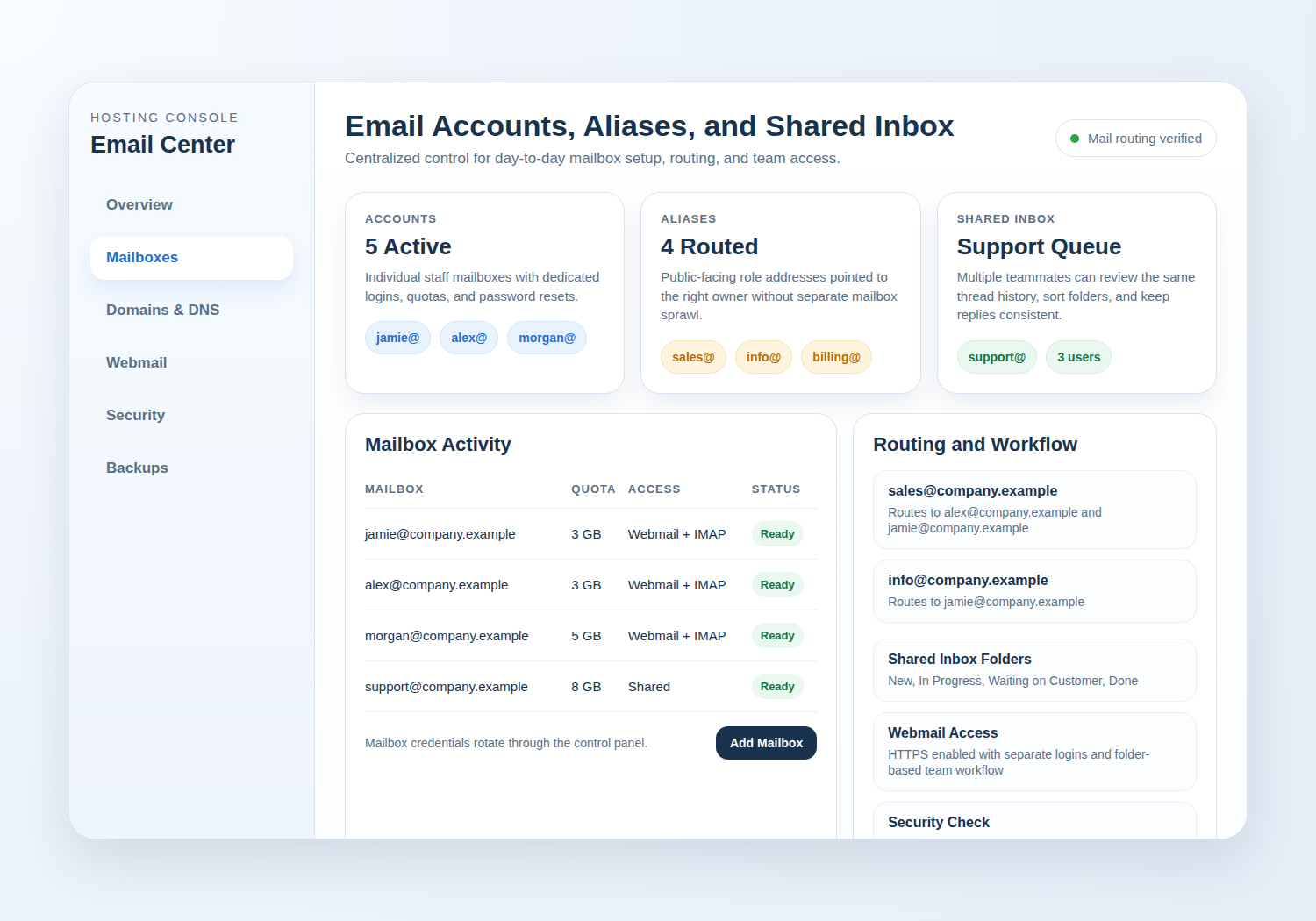
Use the Email Hosting page when you want to understand the service level, then use Webmail when you need to verify mailbox access quickly. If the message does not arrive where expected, the panel should let you check the account status, the alias routing, and the mailbox limit before you guess.
What to check for each mailbox
- Does the account exist and is it active?
- Is the alias pointing to the correct recipient?
- Is the mailbox full, nearly full, or healthy?
- Can the user sign in to webmail without reset drama?
- Are SPF, DKIM, and DMARC aligned in DNS if the service requires them?
Email problems often look like delivery issues when they are really routing issues. That is why the mailbox section and the DNS section should be easy to cross-check. If one section says the account is ready and the other says the records are wrong, you now have the actual problem instead of the story you hoped for.
Backups and restores
Backups are not proof of safety. A backup list only matters if you can identify the right restore point before the panic starts. The control panel should show frequency, retention, coverage, and the scope of each restore option: files only, database only, email only, or full account.

Before you trust the panel, verify three things in Security & Backups: where the history lives, what the retention window is, and whether restores are self-service or ticket-driven. The answer changes the workflow. A lot.
A reliable panel should make it easy to answer: What is the latest restore point? What changed since then? Can I restore one site without touching another? If the answer requires a support case, know that before the incident, not after.
What a restore check should confirm
- The backup includes the part you actually need, not just the part that is easy to store.
- You can preview or identify restore points by date and scope.
- The restore process is documented and the UI makes the outcome visible.
- You know whether files, database, and email are restored together or separately.
Backups reduce panic only when they reduce uncertainty. If the panel leaves you guessing about scope or age, you do not have a recovery plan. You have archived optimism.
Security essentials you will actually use
Security features do not need to be complex to be useful. They need to be visible. Start with SSL. Then check whether the panel offers basic hardening, alerting, and access controls that normal owners can understand without a certification exam.
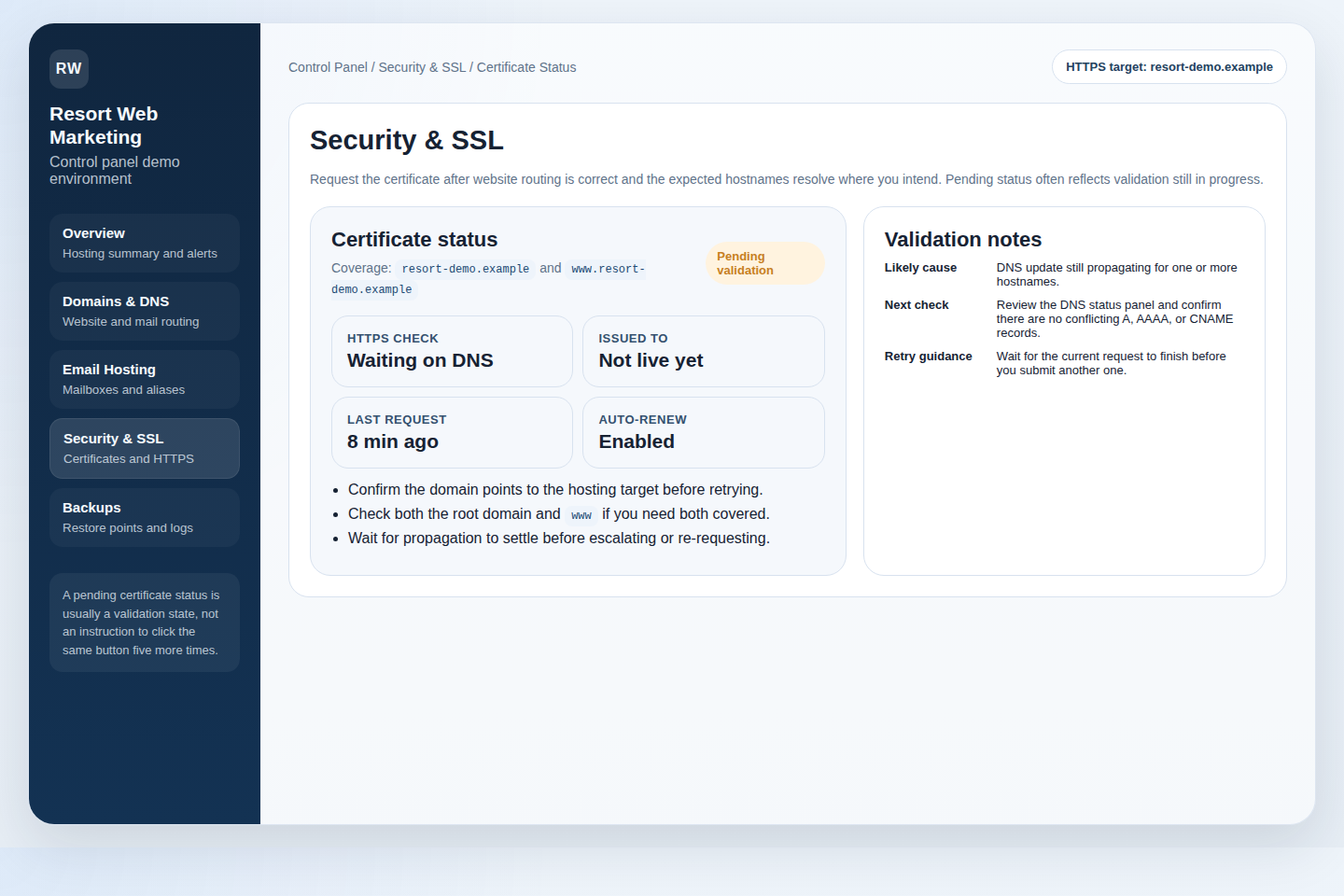
The WordPress hardening guidance is a good reminder that security is not one switch. It is a stack of small controls that prevent obvious failures: HTTPS, file permissions, account hygiene, and basic patch discipline. No drama. Just fewer holes.
Good security controls in a dashboard usually answer these questions without a support ticket:
- Is the certificate active, pending, or expired?
- Can I force HTTPS for the site?
- Are there alerts for logins, malware scans, or suspicious activity?
- Do I have a way to review recent changes or security events?
- Can I lock down file access without breaking the whole stack?
If the answer to every security question is “contact support,” the panel is not secure. It is merely inaccessible.
Support that fits real work
Support is where a control panel becomes a tool instead of a promise. You should know what to collect before you ask for help, because vague tickets produce vague answers, and then everyone pretends that was inevitable.
Before contacting Support or using the Contact page, gather the basics: the affected domain, the exact time the issue started, the page or mailbox involved, screenshots, recent changes, and any error messages. If the panel shows logs, copy the relevant timestamp. If it shows version history, note the last known good state.
| What to collect | Why it matters |
|---|---|
| Domain or mailbox name | Support needs the exact object, not the family resemblance. |
| Time the issue began | Lets support line up your problem with changes or outages. |
| Recent actions | Useful for separating a real incident from a self-inflicted one. |
| Screenshot or error text | Gives support something concrete to verify. |
| Backup or restore point | Useful if the fastest fix is rollback instead of repair. |
Responsive support is not about making you feel heard. It is about shortening the path from symptom to fix. Good support asks for the right evidence, points you to the right panel section, and avoids making you repeat the same diagnosis three times because someone forgot to read the ticket before replying.
Practical conclusion
A good control panel does not hide complexity. It organizes it. You should be able to see where the site lives, where the mail routes, where the database connects, where backups sit, and where security state changes. If the panel cannot do that, then it is not really helping you manage anything. It is only helping you look busy.
Use this as the short version:
- Start with the dashboard and confirm the account, domain, and SSL state.
- Separate website changes, email changes, and DNS changes instead of blending them together.
- Use file, database, and backup tools before you ask support to guess.
- Keep webmail, aliases, and mailbox status visible from the same control panel.
- Gather evidence before you open a support case. It saves everyone from theater.
If you want the safer path, start with the control panel, not the panic. Everything else is just a cleanup job with extra steps.