If you can set up business email cleanly from the control panel, the rest of the system usually becomes calmer too. That is the small lesson behind this guide. The hard part is not creating one mailbox; it is making sure the right people, roles, and replies are in place so messages do not disappear into a gap between the control panel and the inbox.
When someone searches for help with business email, they are usually asking four practical questions: How do I create the right accounts? When should I use an alias instead of a separate mailbox? Do I really need a catch-all? And what is the safest way to automate replies without confusing customers? The terminology sounds technical, but the workflow is not meant to be mysterious. It should be visible, reversible, and easy to review from one place.
The reason this matters is simple: a domain can look ready while the email side is still messy. A weak naming pattern, an overused catch-all, or a reply loop from a misconfigured auto-response can create missed messages and a lot of support noise. Before you touch the mailboxes, confirm the domain is active, the SSL status is healthy, and the DNS side is ready for mail. A quick reference like Cloudflare’s DNS records guide and a basic ownership check through ICANN Lookup can help you verify the pieces that sit outside the inbox itself.
By the end of this guide, you will know how to create accounts, decide when aliases are the better choice, use catch-all mail with restraint, set short and useful auto-responses, test delivery in webmail, and keep the setup tidy as the business grows. I also point to the most useful internal pages along the way, so you can move from setup to maintenance without guessing.

What you can manage from one control panel
I like to begin here because the control panel is the source of truth. If the setup is tidy there, the mail experience is usually easier everywhere else. A good control panel should let you manage the core pieces of email without jumping between disconnected tools: accounts, aliases, catch-all behavior, webmail access, routing, and basic support settings. If you want the broader site-side view, the Control Panel and Email Hosting pages give the bigger picture.
Here is the plain-language version of the most common terms:
| Term | Plain meaning | Why it matters |
|---|---|---|
| Email account | A mailbox with its own login and storage | Best for a person or role that needs to send and reply as itself |
| Alias | An extra address that delivers into an existing mailbox | Useful for sales@, info@, or other role-based addresses that do not need separate storage |
| Catch-all | An inbox that receives messages sent to unknown addresses on the domain | Can catch typos, but can also attract spam and hide bad address habits |
| Auto-response | An automatic reply triggered by a mailbox rule | Good for out-of-office notes and simple acknowledgement messages |
| Webmail | Email accessed through the browser | Lets you verify mail quickly without configuring a separate app |
| Routing | The rules that decide where mail goes | Critical when aliases, shared addresses, or catch-all are in play |
Useful takeaway: if you can explain where every address lands, you are already ahead of many support problems.
Before you start
Before you create accounts, take five minutes and check the basics. This keeps you from fixing the same issue twice.
- Confirm the domain is connected. If you are still sorting out nameservers or record changes, review the Domains & DNS page first.
- Check SSL status. If secure browser access matters for webmail or account management, confirm the certificate state on the Security & Backups page.
- Verify the DNS side is ready for mail. You do not need to over-engineer this step, but you should know where MX and verification records live.
- Decide who actually needs a mailbox. Not every address needs its own login. A role address may be better as an alias.
For a high-level reference on DNS behavior, Cloudflare’s guide to record types is a good plain-English refresher. If the domain itself is still uncertain, the ICANN lookup tool is the quickest way to confirm the registration status and registrar details before you build on top of it.
Do not skip this step: a clean email setup is easier to maintain than a rushed one, and it is much easier to explain to a new team member later.
Step 1: Create email accounts
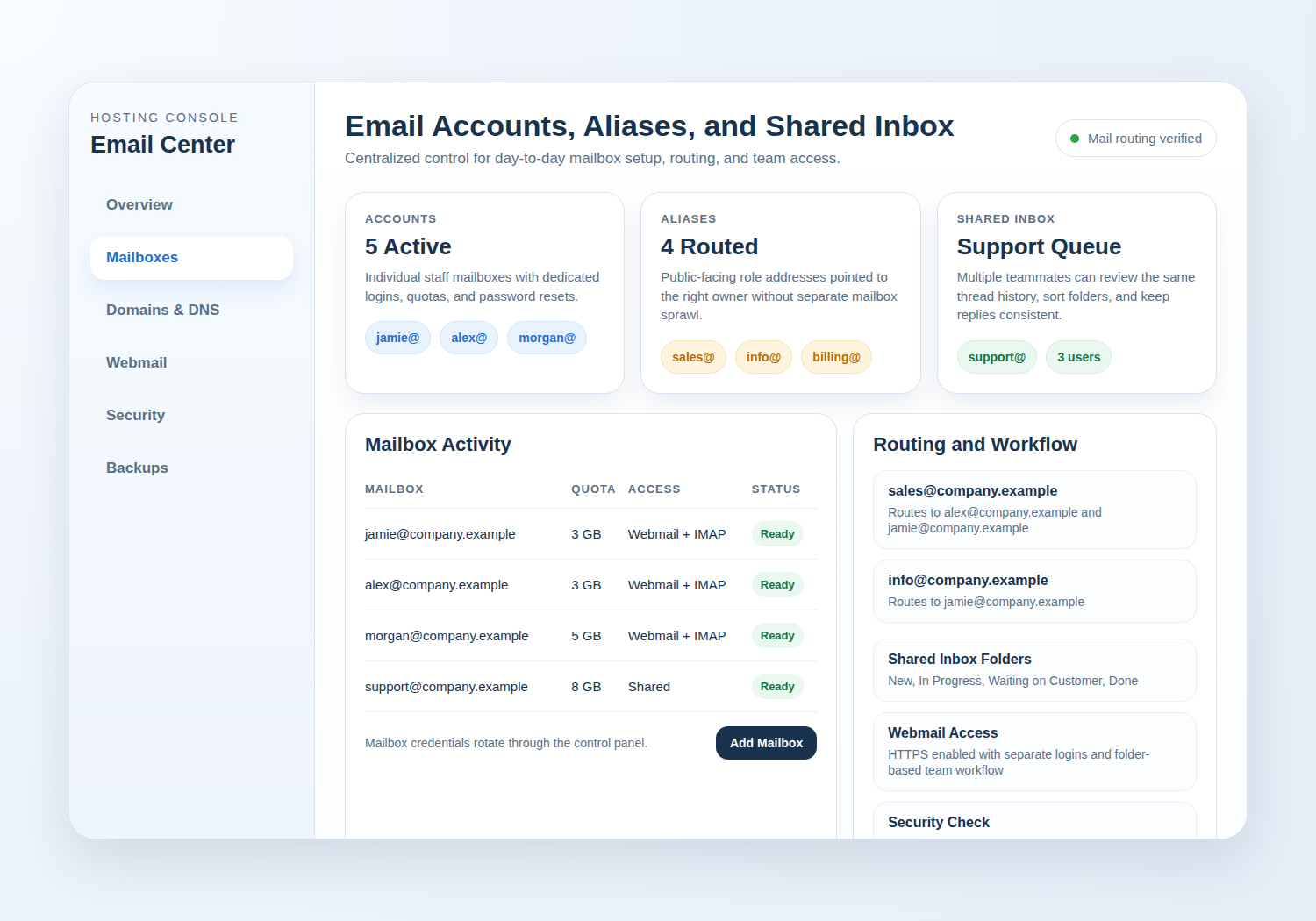
The first job is to create the actual mailboxes that need their own inbox, sent items, and password. In a control panel, this is usually the simplest part of the work. The harder part is naming the accounts so the business can still understand them six months later.
Naming conventions that stay readable
Use names that a customer or teammate can understand at a glance. Short, role-based addresses are easier to manage than clever ones. For example:
[email protected]for general inquiries[email protected]for invoicing and account questions[email protected]for service requests[email protected]for individual staff members
That pattern sounds obvious until a business grows. Then someone discovers that the “temporary” mailbox name from two years ago is now attached to customer support. That is the kind of detail that becomes expensive only after it starts failing.
Mailbox size and quota planning
Mailbox size does not have to be complicated, but it does have to be deliberate. Give each mailbox enough room for normal attachments and message history, then set a habit for cleanup before the inbox fills up. Shared inboxes often need more room than personal mailboxes because they collect copies, forwards, and older threads from several people.
A practical rule: if the mailbox supports customer work, calendar invites, or PDFs, avoid setting the quota so low that every attachment becomes a crisis. If you are unsure, start with a sensible buffer and review usage after the first few weeks.
Login method
Every account should have a clear login method. Some teams use webmail only. Others use a mail app or desktop client after confirming the credentials in the control panel. If you want a browser-first path, the Webmail page is the natural place to begin. Either way, keep the admin password separate from the mailbox password, and do not reuse credentials across staff.
Practical standard: a mailbox should be able to prove it can receive mail, send mail, and be recovered by support without requiring someone to guess which address is supposed to be the “real” one.
Step 2: Add aliases
An alias is an address that points to another mailbox. It looks like a separate address to the outside world, but in the background it arrives in an inbox that already exists. That is why aliases are so useful for businesses that need a professional front door without multiplying logins.
Google’s alias guidance is a useful plain-language reference for the basic idea: an alias is an additional address, not a second independent mailbox. The same logic applies in most hosting control panels even when the interface looks different.
When aliases make sense
- Use an alias when the address is role-based and one team or person can handle the replies.
- Use a separate account when the address needs its own password, storage, or accountability.
- Use an alias temporarily while you are testing a new address pattern or redirecting a legacy contact address.
Examples help here. A small business might keep sales@ and info@ as aliases into one mailbox early on. Once sales and operations split, the business can move to separate accounts or a shared inbox workflow. That choice is not about prestige. It is about whether two people need the same inbox or two different workflows.
Good alias rule: if the address is public, role-based, and low-risk, an alias is often enough. If it needs a distinct workflow, give it a real mailbox.
Step 3: Configure catch-all
A catch-all mailbox receives mail sent to addresses that do not exist on your domain. If someone types support@ instead of supprt@, the catch-all can still catch the message. That sounds helpful, and sometimes it is. It can also become a very tidy place for spam to accumulate.
When a catch-all is useful
- During a launch phase, when you are still building the final address list
- For short-term campaigns where typos are likely and the inbox is watched closely
- When you need a safety net while migrating old addresses to a new pattern
Common risks
- It hides bad address habits. If every typo lands somewhere, nobody notices that the public contact list is inconsistent.
- It increases junk mail. A catch-all is more likely to receive spam than a tightly controlled mailbox.
- It can confuse reporting. Messages may appear successful when they should have bounced and alerted you to a typo.
My practical advice is conservative: use a catch-all only if you have a reason, route it to a monitored mailbox, and review it daily. If the business already knows the public address list, aliases are usually cleaner and easier to explain. That is especially true when the same team also manages support and sales addresses.
Useful takeaway: a catch-all is a fallback, not a strategy.
Step 4: Set up auto-responses
Auto-responses are useful when they do one thing clearly: tell the sender that the message was received and explain what happens next. They are not the place for long brand stories, large signatures, or complicated office-hours logic. Short and direct is better.
Google’s vacation responder guidance is a good example of the kind of reply people expect: a brief note, a time window, and a clear expectation that someone will return later. That same structure works well in most control panels.
Out-of-office for individuals
Use an out-of-office reply when one person is away and the mailbox is not shared. Keep it simple:
- Say that you are away
- Give the date range, if helpful
- Point to the person or address that should handle urgent items
- Avoid repeating the message to the same sender over and over
A safe example would be: “Thanks for your message. I am away until Friday and will reply when I return. For urgent support, please contact [email protected].”
Shared inboxes
Shared inboxes need a little more restraint. If several people watch the same mailbox, an automatic reply can trigger confusion or duplicate acknowledgements. In those cases, use auto-responses only for true acknowledgements or service windows, and make sure the reply reflects the actual workflow.
If you need a short acknowledgment pattern, keep it closer to “We received your message and will respond within one business day” than to a full customer-service essay. The purpose is to set expectation, not to overexplain the company.
Check for loops: whenever an auto-response is enabled, send a test message from an external account and confirm that it replies once, not repeatedly.
Step 5: Validate access with webmail
Webmail is the easiest place to verify that the mailbox is alive. It removes a lot of guesswork because you can log in, send a message, receive a message, and inspect the inbox from the browser without waiting on a desktop app configuration.
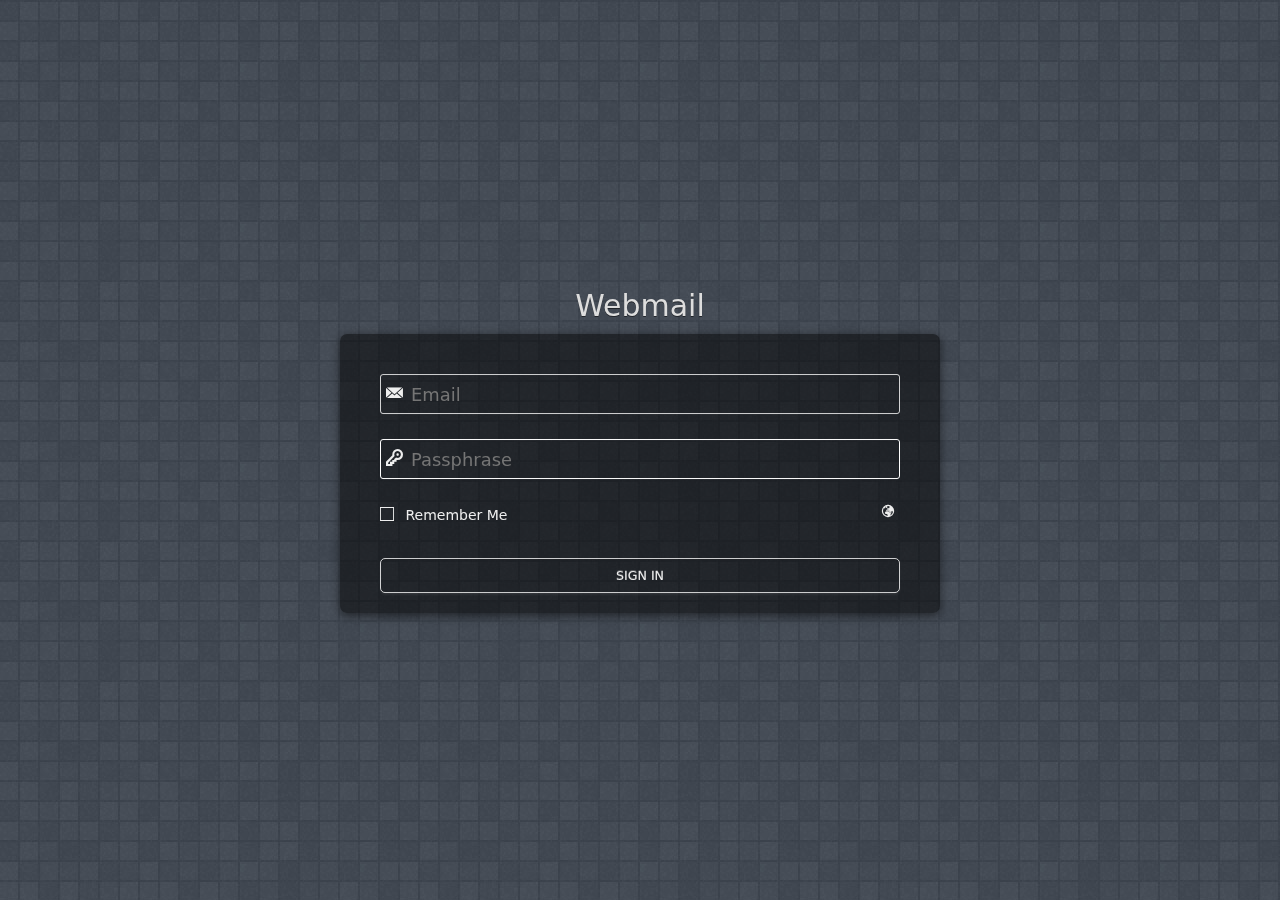
The Webmail page should tell users exactly how to reach the inbox from a browser. Once logged in, use this short test:
- Send a test message to an external address you control.
- Reply from that external address.
- Confirm the reply lands in the correct account or alias.
- Check spam or junk folders if the message seems to disappear.
- Review whether the reply goes to the right person, not just the right domain.
If the business relies on aliases or a catch-all, this step matters even more. Mail can be technically delivered and still end up in the wrong workflow. The inbox may be active, but the message may not be reaching the person who actually owns the conversation.
Practical standard: a successful test proves both access and routing. One without the other is only half a setup.
Step 6: Keep it tidy
Mailboxes do not fail only when they are broken. They also fail when they are neglected. Quotas fill up, role addresses drift, and nobody remembers why a catch-all still exists. The best long-term habit is a short review rhythm.
Quota awareness
Check mailbox usage on a schedule. If one address is growing faster than the others, ask whether it needs more storage, better cleanup habits, or a split into separate roles. A support inbox can grow differently from a finance inbox, and that is normal.
Mailbox cleanup habits
- Archive old threads that no longer need to stay in the active inbox
- Remove outdated aliases when they are no longer used
- Review forwarding rules and catch-all behavior every so often
- Keep a simple note of who owns each public address
Monitoring
If you already have a support process, the mailbox should fit it. A contact address that nobody checks is not really a contact address. A role address with a live alias and an active owner is much easier to maintain. If you need a broader operational view of hosting and storage, the Security & Backups page is a useful place to compare maintenance habits with recovery planning.
For businesses that manage customer service through email, a small review every week is usually enough. The goal is not perfection. The goal is to make problems obvious before a customer has to tell you about them.
Troubleshooting quick hits
Most email problems fall into a few predictable buckets. Here is the short version I would use first.
| Symptom | Most likely cause | First thing to check |
|---|---|---|
| Can’t log in | Wrong password, expired credential, or mailbox not active | Confirm the account exists in the control panel and reset the password if needed |
| Messages are missing | Wrong routing, alias mismatch, spam filtering, or a catch-all that is absorbing mail | Check the mailbox owner, routing rules, and spam folders |
| Mail was sent but not received | Alias, DNS, or delivery path problem | Verify the address exists, confirm the message path, and test from webmail |
| Auto-response keeps firing | Reply loop or rule that is too broad | Limit the rule to the right mailbox and test from an external address |
If the issue feels deeper than a mailbox setting, move back one level and check the control panel itself. That means the account status, the address mapping, the domain records, and whether the SSL or login path is healthy. If you need help from a person, use the Support page and be ready to share the exact address, the symptom, and the time the problem started. If the problem seems tied to hosting rather than mail alone, the Website Hosting page is the right place to start the broader review.
Fast diagnosis rule: if one address works and another does not, the issue is usually configuration, not the whole system.
Conclusion
Business email becomes much easier to manage when the control panel is treated as the source of truth. Create only the mailboxes you truly need, use aliases for the public-facing roles that do not need their own passwords, keep catch-all use limited, and make auto-responses short enough to be helpful. Then verify everything in webmail before anyone assumes the setup is done.
If I had to reduce the whole process to one sentence, it would be this: make the address structure obvious, make the routing visible, and make the fallback rules boring. That is how a small team keeps control without turning email administration into a full-time project.
Next steps: if you are starting fresh, begin with Website Hosting and Email Hosting. If you are already mid-setup, move to Control Panel, confirm the domain state on Domains & DNS, and use Contact or Contact Support if something still does not line up.
- Create accounts only for people or roles that need independent logins.
- Use aliases for public addresses that should arrive in an existing inbox.
- Use catch-all sparingly and watch it closely if you enable it.
- Keep auto-responses short and test them from an external mailbox.
- Validate everything in webmail before the team depends on it.
Get Started Manage Hosting Contact Support Request Hosting Plan