If cron jobs have ever felt like “set it and forget it” plumbing, this is the part where I suggest you forget that phrase. A scheduled task is small until it touches backups, email, cache, or a customer form queue. Then the same quiet setting can become the thing you notice at 6:40 a.m. when a report is missing.
What should a business owner actually ask first? Do I need a cron job at all? Is the task already handled by a plugin, a queue worker, or WordPress itself? If I schedule it, how do I keep it from colliding with peak traffic, a long-running backup, or a mail job that should have finished an hour ago?
The basic model is old, but the details still matter. The Linux crontab manual explains the schedule syntax, the cron daemon documentation explains how the scheduler runs on the server, and the WordPress cron documentation explains why WP-Cron is useful but not identical to a real system cron. If you manage your site from a control panel, that distinction affects reliability more than the label on the menu.
In this guide, I will show you what cron jobs do, where they fit in a business website, when not to use them, how to plan them safely, and how to troubleshoot the common failure modes without turning maintenance into guesswork. If you want the broader site context while you read, the home page explains the hosting and email setup, and the About page explains the organization behind these guides.
By the end, you should be able to decide whether a scheduled task belongs in WordPress, in the hosting control panel, or nowhere at all.
Terminology first: what cron is, and what it is not
I prefer to define the terms before the advice. The wrong scheduling choice usually comes from a vague one. Here is the short version.
| Term | Plain meaning | Why it matters |
|---|---|---|
| Cron | A server scheduler that runs commands on a timetable. | It is the mechanism that makes recurring maintenance possible. |
| Crontab | The schedule file or editor that lists timed commands. | This is where you define when and what. |
| Job | The command or script that runs on schedule. | The job should be short, repeatable, and easy to test. |
| WP-Cron | WordPress’s built-in scheduled-event system. | Useful for site tasks, but it depends on site traffic or a trigger. |
| Execution context | The user, folder, environment, and permissions used to run the command. | Most “it worked in testing” failures are really context problems. |
| Log | The output or record of what happened during the run. | If you cannot inspect it, you cannot troubleshoot it quickly. |
The key distinction is simple: cron schedules commands, but it does not make those commands safe. Safety comes from the script, the permissions around it, the runtime budget, and whether the task is already handled somewhere else.
What cron jobs do, and what they do not do
Business owners often ask for “a cron job” when they actually need one of five different things. The table below keeps the decision honest.
| Cron can do this | Cron cannot do this |
|---|---|
| Run a backup verification script every night. | Guarantee that the backup itself is valid without testing restore steps. |
| Refresh a sitemap after content changes. | Fix broken SEO settings or missing pages automatically. |
| Clear cache files or warm a cache at a planned time. | Make a slow plugin fast if the plugin logic is the real bottleneck. |
| Process queued form submissions or notifications. | Replace proper queue handling when the task volume is high. |
| Send a recurring report to a team inbox. | Fix deliverability problems if email records, spam filtering, or mail reputation are wrong. |
| Clean up temporary files, expired sessions, or old exports. | Recover data that was deleted too aggressively. |
A sensible rule: use cron for predictable, repetitive work that can tolerate a delay. If a task must happen instantly when a customer clicks a button, a webhook, queue worker, or native application event is often the better fit.
Common business uses that are worth automating
- Scheduled backup checks so you know a backup exists and completed on time.
- Sitemap updates after publishing or content changes.
- Cache warmups before business hours if your site benefits from it.
- Cleanup jobs for logs, temp files, stale exports, and expired sessions.
- Form and queue processing for delayed email sends, CRM handoffs, or batch notifications.
- Database housekeeping when a plugin or internal script needs periodic maintenance.
If a team eventually wants a lightweight dashboard for recurring operations, it may prototype one first and then keep the scheduled job itself small and predictable. Order is expensive; messy automation is more expensive.
When not to use cron
The cleanest cron job is the one you decide not to create. I would avoid scheduling a task when any of these apply.
| Situation | Reason to avoid cron | Safer alternative |
|---|---|---|
| The plugin already has its own scheduler or queue. | Two schedulers can overlap and duplicate work. | Use the built-in mechanism, or disable one path clearly. |
| The task is heavy and would run during peak traffic. | It can slow the site, trigger timeouts, or contend for resources. | Move it to a quiet window or split it into smaller chunks. |
| The command needs secrets in plain text. | Secrets in commands, shell history, or logs are a security risk. | Use environment variables, secret files, or application settings with restricted access. |
| The task must complete instantly when a user acts. | Scheduled polling adds delay and uncertainty. | Use a webhook, event hook, or direct synchronous handler. |
| You cannot tell whether the job already ran. | Unclear ownership usually means duplicate runs or missed alerts. | Add logs, a lock file, or a clear run marker before automation. |
Peak-hour scheduling deserves special care. A nightly task that runs at 2:00 a.m. is often harmless. The same task at 10:00 a.m. can collide with visitors, email delivery, backups, and admin work. The schedule should follow the site’s traffic pattern, not the convenience of the person setting it.
How to plan a cron job safely
When I plan a scheduled task, I work through the same six questions every time. If a task cannot pass them, it usually is not ready to automate.
- Identify the exact command. Do not schedule a fuzzy idea. Use the actual script path or command line.
- Confirm the owner and permissions. Decide which user should run it and what folders it may touch.
- List the environment variables it needs. Make sure paths, database access, API keys, and mail settings are defined where the job can read them.
- Estimate runtime. Know the typical duration, the worst-case duration, and what happens if it runs long.
- Decide the retry behavior. If the task fails, should it try again immediately, wait, or alert a human first?
- Define a success signal. A job is not “fine” because it returned no visible error. It is fine when the output, log, or resulting record proves it.
The most useful habit here is to test the command manually before you schedule it. If the command fails in a terminal, it will not become reliable because you added a clock.
Control matters more than cleverness. A short command with a clear permission boundary is better than a “smart” script that only one person understands.
A control-panel workflow that stays manageable
Most hosting control panels present cron jobs in a similar way: schedule, command, user/context, and logs. The labels vary slightly, but the workflow should feel familiar.
- Open the control panel. Go to your hosting tools and find the scheduled task area. If you are still deciding where the rest of the site should live, the Control Panel page explains the management model in plain language.
- Create a new schedule. Start with the least frequent interval that still meets the business need. Hourly is often too frequent when daily is enough.
- Enter the command carefully. Use the exact script or command. Avoid extra spaces, guessed paths, and convenience shortcuts that break when the directory changes.
- Choose the execution context. If the panel lets you select a user or working directory, use the one that has the narrowest safe access.
- Save and test once. Run the job manually or with a test flag if the script supports it.
- Verify the log. Look for a clear start time, a clear finish time, and an obvious success or failure signal.
- Keep a change note. If the job ever breaks, you want to know what changed and when.
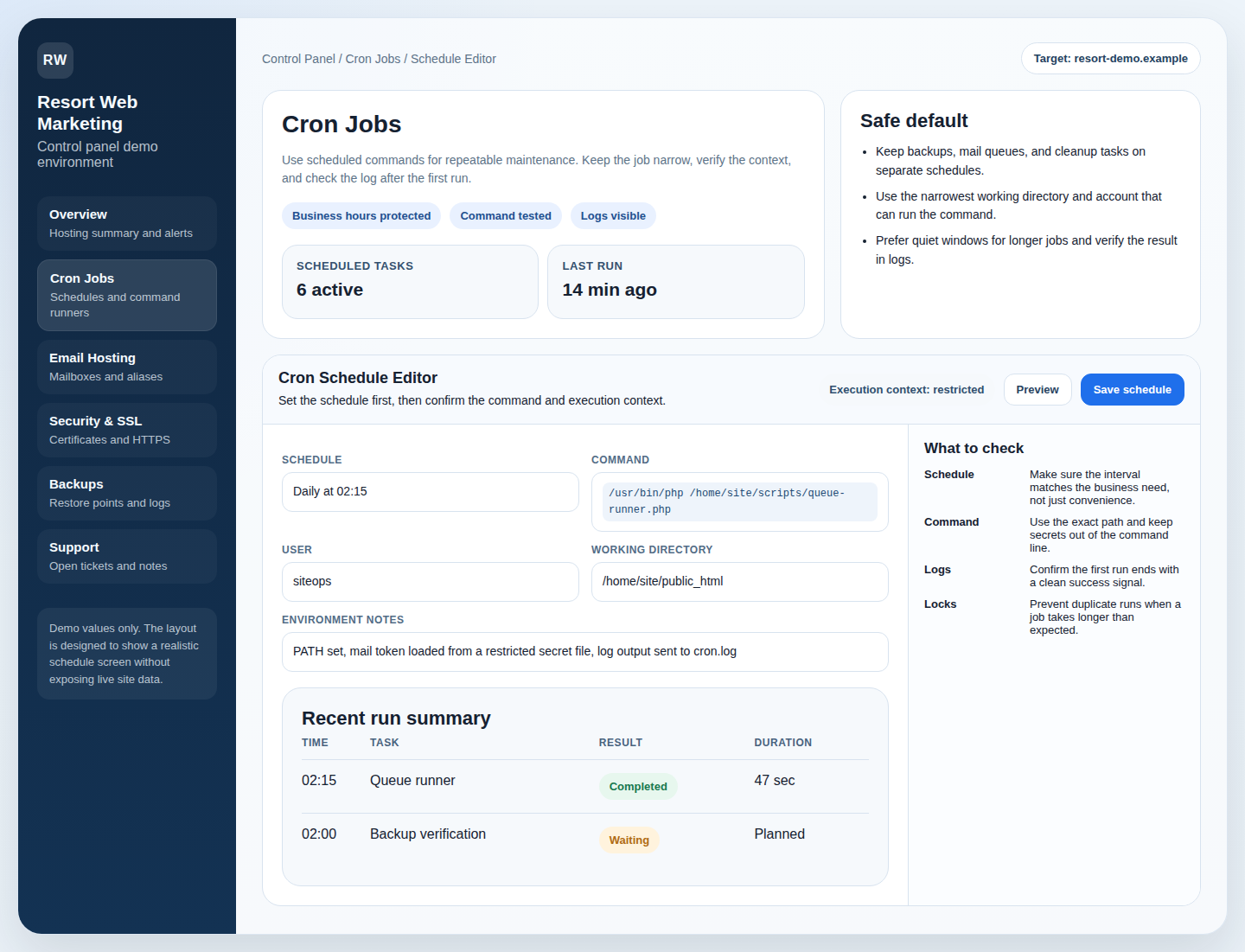
For a practical control-panel tour, the screenshot-style interface below is the kind of layout I want to see: easy to scan, obvious labels, and no hidden magic. A scheduling screen should help you reason about the job, not conceal it.
When a control panel gives you a clear place to define a command, schedule, and working context, you can manage recurring tasks without handing over the whole site. That is the difference between control and guesswork.
WordPress-friendly scheduling tips
WordPress adds one important wrinkle: not every scheduled task belongs in server cron. Some tasks are better handled by the platform itself, while others are better moved to the hosting layer for reliability.
Use WP-Cron when the task is small and site-aware
- Publishing-related cleanups.
- Plugin routines that already expect WordPress hooks.
- Tasks that are light enough to tolerate a small delay.
Use server-side cron when timing really matters
- Backup validation and restore checks.
- Heavy imports, exports, or cache maintenance.
- Regular mail queue processing when consistency matters more than page-load timing.
- Long-running jobs that should not depend on visitor traffic.
The practical test is simple: if the task must run even when the site is quiet, a real cron schedule is usually the safer choice. WordPress’s own docs explain that WP-Cron is traffic-triggered, which is useful for convenience but not ideal for timing-sensitive work. That distinction matters when your site has low traffic, scheduled mail, or night-only maintenance windows.
For targeted tasks, keep the scope narrow. Do not make one cron job do everything. One job that builds a sitemap is easier to trust than one job that builds a sitemap, clears cache, resizes images, checks email logs, and sends a report to three people. The more responsibility you pile into one timer, the more difficult the failure becomes to diagnose.
Troubleshooting checklist: missed runs, duplicates, and weird timing
When a cron job misbehaves, I start with the same checklist every time. Most failures are boring once you can see them.
| Symptom | Likely cause | What to check |
|---|---|---|
| Job never runs. | The schedule is disabled, the command path is wrong, or the task depends on traffic that never arrived. | Confirm the job is enabled, test the command manually, and verify the triggering mechanism. |
| Job runs twice. | Two schedulers are active, or the first run was still in progress when the second started. | Look for overlapping schedules, duplicate plugin scheduling, or missing locks. |
| Permission denied error. | The wrong user or directory is executing the command. | Check ownership, file permissions, and the control-panel execution context. |
| It works manually but not on schedule. | Environment variables, working directory, or PATH values are different. | Use absolute paths and define the environment the job expects. |
| Timing looks off by one or several hours. | Time zone mismatch, daylight saving changes, or the server clock is set differently from the site. | Compare server time, site time, and the schedule definition. |
| The job never finishes. | The script loops, waits on a remote service, or processes too much at once. | Cap the work per run, add logging, and split the task into smaller batches. |
One small caution is worth repeating: an idempotent job is much easier to operate than a fragile one. Idempotent means the job can run twice without creating a second copy of the same result. That property is gold when a schedule retries after a timeout or a human manually reruns a task.
If you need a more systematic way to think about maintenance work, our whole-house water filter and softener guide uses the same practical mindset: define the job, define the check, then confirm the result. Different subject, same discipline.
Performance and reliability: keep the schedule short, simple, and staggered
Cron jobs should help the site breathe, not hold it underwater. A few operating rules keep the system stable.
- Keep each job short. If a job keeps growing, split it into smaller steps.
- Stagger related tasks. Do not make backups, cache purges, and email queue work start at the exact same minute.
- Avoid noisy peak windows. Use quieter windows for heavier work whenever possible.
- Monitor failures, not just schedules. A job that “ran” but failed halfway through is not a success.
- Use sensible retries. Immediate retries can multiply the problem if the cause is a bad command or a dead dependency.
- Limit side effects. If the job writes files, cleans logs, or touches a database, make sure the effects are expected and reversible.
For recurring internal work, a small custom dashboard can sometimes make the schedule easier to manage than scattered notes and sticky messages. If that ever becomes useful, the web app generator resource may be a practical starting point for prototyping the interface, while the actual job logic remains the responsibility of the server.
Security basics that should not be optional
Cron jobs are not inherently dangerous. Careless cron jobs are dangerous. The difference is mostly discipline.
- Use least privilege. Run the command as the narrowest account that can still do the job.
- Do not place secrets in plain text commands. Command history, logs, and screenshots spread quickly.
- Protect the script path. Users who should not edit the job should not be able to edit the file.
- Lock down write access. If many users can change the script, the schedule is not really controlled.
- Audit the output. Logs can leak information too, so treat them as operational data, not public text.
- Prefer clear ownership. One person or team should know who owns the job, why it exists, and when it can be retired.
Security is not only about keeping attackers out. It is also about keeping good intentions from becoming accidental damage. A scheduled job with too much access can delete the wrong file, overwrite the wrong database row, or expose the wrong report at the wrong time.
A simple decision path
If you want the short version, use this decision path:
- Is the task already handled by WordPress or a plugin? If yes, keep it there unless timing is unreliable.
- Does the task need exact timing? If yes, use real server-side cron rather than traffic-triggered scheduling.
- Does the task touch backups, email, or customer data? If yes, test it manually and inspect logs before you trust it.
- Is the job long or risky? If yes, split it up, reduce its scope, or rethink whether it should be scheduled at all.
- Can you explain the job in one sentence? If not, the design is probably too broad.
That last question sounds plain because it is useful. If you cannot explain what the job does and why it exists, the next person to maintain it will pay the price. Responsibility is not optional; cron merely records the bill.
Conclusion: automate the boring work, not the uncertainty
Cron jobs are useful when they do three things well: they repeat reliably, they stay narrow, and they run in a context you can actually manage. For a business website, that usually means backup checks, sitemap refreshes, cache work, cleanup jobs, and controlled queue processing. It does not mean throwing every maintenance problem into one timer and hoping the server stays polite.
My practical recommendation is straightforward. Use WP-Cron for light, site-aware work. Move timing-sensitive or heavier jobs to the hosting control panel. Keep the command short, keep the permissions narrow, and keep the logs visible. If you can do that, cron becomes a tool instead of a mystery.
Before you schedule anything, decide whether the task truly belongs there. If you want help reviewing your setup, start with the Control Panel, check the related Website Hosting and Email Hosting pages, and use Support or Contact when you want a second set of eyes. If you are evaluating an overall hosting plan, the Request Hosting Plan path is the cleanest next step.
For related maintenance reading, the whole-house water filter and softener guide is a useful reminder that good upkeep always starts with a clear checklist. The subject changes; the discipline does not.
Key points to remember
- Cron schedules commands; it does not make them safe by itself.
- Use it for predictable work that can tolerate a delay.
- Avoid overlap with plugins, queues, or other schedulers.
- Plan for permissions, environment, runtime, and logs before you save the job.
- Use real server-side cron for timing-sensitive work and WP-Cron for lighter site-aware tasks.
- Keep security tight: least privilege, no plain-text secrets, and narrow access to scripts and paths.