Small-team email gets messy faster than most people expect. One shared password becomes three, support@ quietly forwards to the wrong person, and everyone learns the phrase “I never got it” a little too well. A clean control panel setup fixes most of that before it turns into a daily ritual.
If you are setting up business email for a small company, agency, or operations team, the usual questions sound pretty similar. Which addresses should be real mailboxes and which should be aliases? When does a shared inbox make more sense than forwarding? What needs to be in place at the domain level before anyone can send and receive reliably? And how do you keep webmail, security, and deliverability from becoming three separate puzzles?
This guide gives you the plain version first, then the practical steps. You will set up staff accounts, add role-based aliases, choose a workable shared inbox pattern, and check the control-panel settings that keep the whole system steady. If you want the service overview before the how-to, start with the homepage, then compare the platform details on Email Hosting and Control Panel.
Written by Nora Finch
Updated June 11, 2026

Why Small Teams Need More Than “Just an Inbox”
A business email setup should reflect roles, not just people. One person may answer sales questions this month and someone else next quarter, but the public address should stay stable. That is why small teams usually need three layers working together:
| Email Setup | Best Use | Why It Helps |
|---|---|---|
| Individual account | [email protected] |
Creates accountability, personal login access, and a clean offboarding path |
| Alias | [email protected] forwarding to one or more people |
Keeps public-facing addresses stable without creating a separate mailbox for every role |
| Shared inbox | [email protected] accessed by multiple team members |
Gives the team one place to review, reply, and hand off messages without guesswork |
This structure matters because customers do not care who is on vacation or which teammate changed roles. They just expect support@ to work. A control-panel-first setup makes that possible by separating identity from access. The role address stays public. The access rules stay private. That is much easier to manage than improvising with one mailbox and a prayer.
If your current setup still revolves around one catch-all mailbox and everyone replying from it, that is your sign to reset the structure. Catch-all mail can be useful in narrow cases, but for most small teams it creates more noise than clarity. A cleaner system starts with named staff accounts, then adds role addresses deliberately.
What to Set Up First: Domain, MX Records, and TLS Expectations
Before creating mailboxes, confirm that the domain is pointed to the correct mail service. The short answer is this: your domain needs valid mail routing before any address on it can behave normally. In practice, that means reviewing the domain in Domains & DNS and checking the records that control incoming mail.
The record type most teams notice first is the MX record, which tells the internet where mail for your domain should be delivered. Cloudflare’s MX record explainer is a useful plain-language refresher if you want the concept without turning this article into acronym camp: Cloudflare explains MX records here. If you need to confirm domain registration details or who currently manages the name, ICANN Lookup is the simplest neutral place to check.
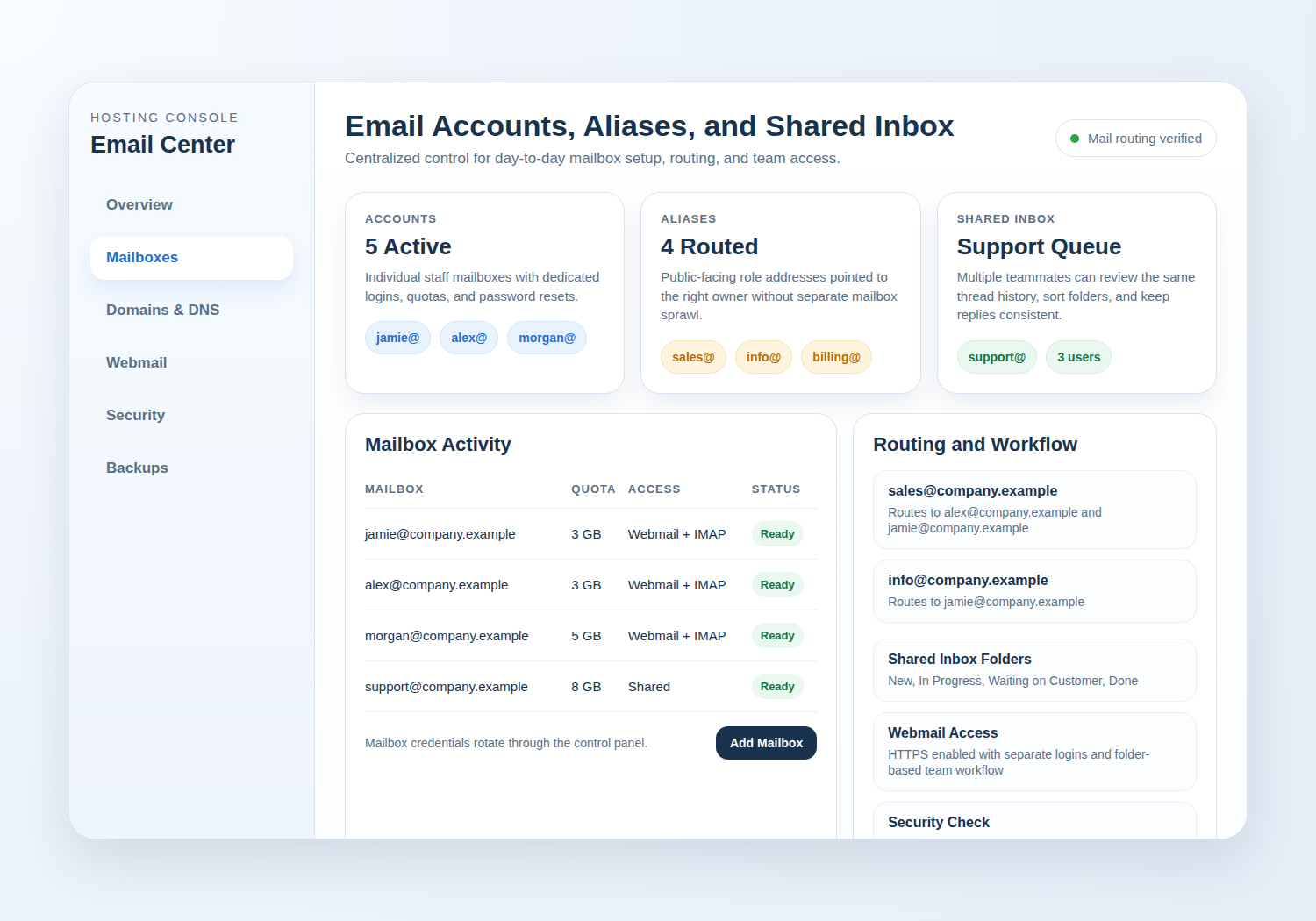
Alongside routing, confirm the security baseline. Webmail and mail clients should use TLS, which is the encryption layer that protects the connection between the user and the mail service. Mozilla’s TLS glossary entry is a good reference if you want the short technical definition: MDN’s TLS overview. You do not need to become a protocol historian here. You just need to know that business email should not rely on unencrypted logins or vague “it usually connects” assumptions.
Before moving on, verify these four basics in the control panel:
- The domain is active and assigned to the right hosting account.
- MX records point to the intended mail service.
- Webmail access is available over HTTPS.
- You know where SPF, DKIM, and DMARC records would be reviewed later if deliverability needs attention.
If those checks are in place, you are ready to build the human part of the system.
Step 1: Create Email Accounts for Staff
Start with real people first. That sounds obvious, but teams often create a pile of role addresses before they create the staff accounts those roles should connect to. It is like labeling drawers before buying the desk.
Inside your control panel, open the email section and create one mailbox per active user who needs direct access. Use naming that will still make sense six months from now. First name, first initial + last name, or another simple standard is usually enough. The important thing is consistency.
A clean first pass looks like this:
- Use a documented naming format. Examples:
jamie@,jamie.lee@, orjlee@. Pick one pattern and stick to it. - Set mailbox quotas intentionally. Do not make every mailbox huge by default just because storage exists. Give each role enough room for normal work, then review usage later.
- Store credentials safely. Send the initial password through a safe internal process, then have the user change it after first login.
- Test both send and receive. A successful login is useful. A successful send-and-receive test is better.
For a five-person team, that might mean creating:
[email protected]for operations[email protected]for sales[email protected]for support[email protected]for finance[email protected]only if you want a monitored general mailbox rather than a simple alias
The key decision is whether an address needs its own login and mailbox history. If yes, create an account. If not, you may be looking at an alias instead.
This is also the right point to confirm where each user will access mail. If they need browser-based access immediately, make sure they know how to sign in through Webmail. If they will also use a desktop or mobile app later, get the mailbox working in webmail first. That gives you a clean baseline when a device setup goes sideways.
Step 2: Add Aliases and Decide When an Alias Is Enough
An alias is an additional address that sends mail to an existing mailbox. It does not usually create a separate login or its own storage. That makes aliases perfect for role addresses that should stay stable even when staff assignments change.
Common examples include:
Use an alias when all of these are true:
- The address does not need its own independent login.
- The mail can be delivered to one existing mailbox or a short list of existing mailboxes.
- You do not need a separate archive that belongs to the role itself.
Create a separate account or shared inbox instead when:
- Multiple people need to log in directly to the same mailbox.
- You need one place where the full message history lives for the role.
- You need to preserve or audit that mailbox independently from one person’s account.
A simple example helps. If sales@ currently routes to one account manager, make it an alias to that person’s mailbox. If three people rotate on sales replies and need to see the same conversation history, create a shared mailbox pattern instead. The short rule: aliases are for routing; shared inboxes are for teamwork.
When you add aliases, document who owns each one. Unowned aliases are a classic small-team problem. They work beautifully until the person who set them up leaves and nobody remembers why info@ forwards to three places, one of which is apparently an old contractor.
Step 3: Set Up a Shared Inbox Workflow That a Real Team Can Use
Shared inboxes solve a different problem from aliases. They are about shared visibility, not just shared delivery. Support, front desk, and general inquiries often work better when multiple people can see the same conversation thread in one place.
There are a few ways control panels handle this:
- A dedicated mailbox, such as
[email protected], with credentials shared only through an approved internal process - A mailbox plus delegated access, if your environment supports per-user permissions
- A mailbox that is accessed through webmail by the team, with clear process rules for replying and organizing folders
The workflow matters more than the label. A good shared inbox setup answers these questions before the first customer email arrives:
- Who is allowed to read, reply, delete, or archive messages?
- Should replies come from the shared address, from an individual user, or both?
- How will the team mark a message as in progress, waiting, or resolved?
- Who reviews the inbox when someone is out of office?
- Who can reset credentials or change forwarding rules?
For many small teams, the simplest starting point is a dedicated mailbox plus webmail access and a basic folder structure. Create folders such as New, In Progress, Waiting on Customer, and Done. It is not glamorous, but it is much better than replying, forgetting, and hoping memory will do the rest. Memory is an unreliable help desk.
If the team later needs a more formal intake process for mailbox requests, alias changes, or access approvals, a lightweight internal tracker can help. A neutral example of that kind of tooling is this web app generator, which is relevant only as one option for internal workflow software, not as a hosting recommendation.
Webmail Access Basics: The Safe Starting Point
Webmail is usually the easiest place to begin because it removes device-specific setup from the first round of testing. If the mailbox works in the browser, you know the account itself is alive before you start debugging a desktop client, a mobile profile, or one laptop that has decided to become a philosopher about SMTP.
When you open webmail for a new team mailbox, confirm these basics:
- Login works over HTTPS.
- Sent mail lands in the expected Sent folder.
- Replies return to the same mailbox or approved alias.
- Folders can be created and used consistently.
- Users know how to sign out on shared or borrowed devices.
Webmail also helps with shared inboxes because everyone sees the same server-side state. That reduces confusion around which folders exist, what has been read, and whether the last sent item is actually on the server or trapped in one person’s local app.
Once webmail is working, you can decide whether some users also need an email client. That deeper comparison is covered separately in Webmail vs. Email Client; this article stays focused on getting the account structure right first.
Security Essentials in the Control Panel
Email security is mostly about removing easy mistakes. That means strong passwords, limited access, clean offboarding, and secure connections. The technical settings matter, but the practical habits matter just as much.
Use this control-panel checklist:
- Require unique passwords for every real user. Shared credentials make offboarding and accountability harder than they need to be.
- Limit admin access. Not everyone who answers mail needs permission to edit routing or create new accounts.
- Use HTTPS for webmail and TLS for mail clients. Secure transport is table stakes, not a bonus feature.
- Review brute-force or login-protection settings. If the control panel includes account lockout, rate limits, or suspicious login alerts, turn them on where appropriate.
- Audit aliases and forwards regularly. Old routes create silent risk because they keep working long after everyone forgot they exist.
For password hygiene, the most useful outside reference is still the modern guidance from NIST: NIST SP 800-63B. You do not need to quote it at your team meeting. The practical takeaway is enough: use strong, unique passwords and stop reusing old ones for convenience.
If you want the broader operational side of account safety, review Security & Backups after the email basics are in place.
Deliverability Checklist for Small Teams
Deliverability is the part people think about after the first bounced email. Better to check it earlier. You do not need a full deliverability audit for a normal small-team setup, but you should verify the basics that keep outgoing mail credible.
Use this short checklist:
- SPF: confirm the domain has an SPF record that authorizes the service allowed to send mail for the domain.
- DKIM: enable DKIM signing if your environment supports it, then confirm the required DNS record is published.
- DMARC: publish a DMARC policy so receiving systems know how to treat messages that fail alignment checks.
- From address consistency: send from addresses the domain actually owns and the control panel is configured to support.
- Mailbox health: watch for full inboxes, disabled accounts, or forwarding loops that can make normal mail look unreliable.
You do not need to repeat the full DNS tutorial every time a message bounces. But you do need to know where those records live and who is allowed to change them. A good workflow is to create the mailbox, test send/receive, then confirm the domain’s authentication records before rolling the address out publicly.
Common Issues and Quick Fixes
Here is the troubleshooting order that saves the most time:
| Problem | Check First | Then Check |
|---|---|---|
| User cannot log in | Wrong password, wrong mailbox, or suspended account | Whether webmail works over HTTPS from another browser or device |
| Mail sends but does not arrive | Recipient address, bounce message, and spam folder | Domain authentication records and sending identity |
| Mail is not being received | MX records and mailbox status | Forwarders, filters, quotas, and whether the domain points to the intended mail service |
| Shared inbox feels chaotic | Folder rules and who is replying from which address | Whether you need a dedicated mailbox instead of a loose forwarding setup |
When something fails, keep the order simple:
- Check whether the mailbox exists and can log in through webmail.
- Check whether the issue affects sending, receiving, or both.
- Check the domain-level routing and authentication records.
- Check client-specific settings only after the server-side basics are confirmed.
That sequence prevents a common mistake: changing five device settings when the actual problem is one DNS record or one disabled mailbox. If the problem still is not clear, use the shortest escalation path and Contact Support with the affected address, the time of the failure, and whether webmail works.
Final Takeaway
Small-team email runs better when you separate staff accounts, role-based aliases, and shared inboxes instead of treating them as interchangeable. Create real accounts for real people. Use aliases for stable public-facing addresses. Use a shared inbox when multiple people need the same mailbox history and reply workflow. Then support the whole system with secure webmail, sensible permissions, and a quick deliverability check.
If you are setting this up for the first time, start with the basics and keep the structure clean. If you already have email in place but it feels improvised, the fix is usually not more mailboxes. It is better ownership and fewer accidental workarounds.
Get Started if you are mapping your first business email setup. Use Manage Hosting if the domain and mail service already exist and you want to tighten the configuration. If you need help reviewing accounts, aliases, or mail routing, Request Hosting Plan or go directly to Contact Support.