Permissions are quiet right up until they are the reason a website update fails, a backup cannot run, or the wrong person has more access than the job requires. That is why permission settings deserve a calm baseline before a busy day turns into an avoidable incident.
Small teams usually arrive at this topic with practical questions. Who should get full control-panel access and who should not? What do read, write, and execute actually mean in a file manager? When should a contractor be allowed to install plugins, edit wp-config.php, or touch the database? And if something breaks, how do you tell whether the problem is a permission issue, a path issue, or a configuration mistake?
The problem is real because hosting control panels bring several high-impact tasks into one workspace. WordPress maintains a detailed reference on file permissions, and the OWASP principle of least privilege exists for the same reason: give people and processes the minimum access required to do the work, then review it before that access becomes permanent by accident. That principle applies whether you are maintaining a single brochure site or a fuller website hosting account with several operators sharing responsibility.
In this guide, I will keep the focus narrow and useful. You will see how to separate control-panel roles, how file and database permissions affect live websites, what to check before routine tasks such as plugin installs or backups, how cron jobs fail when ownership is wrong, and which details to collect before you contact support. If you need the wider service overview first, the homepage and the main control-panel pages will frame where these permission decisions sit.
Written by Grant Vale
Updated June 14, 2026
Why Permissions Matter More Than They Look
A hosting account is not one thing. It is a stack of related systems: website files, databases, scheduled tasks, email settings, SSL, backups, and user access. If everyone uses one shared top-level login, you lose two forms of control at the same time. First, you increase the chance of an avoidable mistake. Second, you lose the ability to tell who changed what when recovery starts to matter.
I prefer a simple rule here: separate routine work from high-risk work. Uploading media, editing page content, or checking a mailbox should not require the same level of access as changing database users, editing application configuration, or restoring account-level backups. When those jobs share the same unrestricted account, the failure mode is predictable. The wrong change reaches the wrong layer, and now the cleanup takes longer than the original task ever should have.
This is one of the main reasons a good control panel should not only expose features, but also expose boundaries. Clear roles reduce support tickets because they reduce accidental changes. They also reduce recovery time because you can narrow the blast radius quickly.
User Access in the Control Panel: Admin vs. Limited Roles
Every team does not need the same structure, but most small businesses and agencies benefit from a short permission model that people can actually follow. The goal is not bureaucracy. The goal is to match the account level to the task level.
| Role | Should Usually Access | Should Usually Avoid |
|---|---|---|
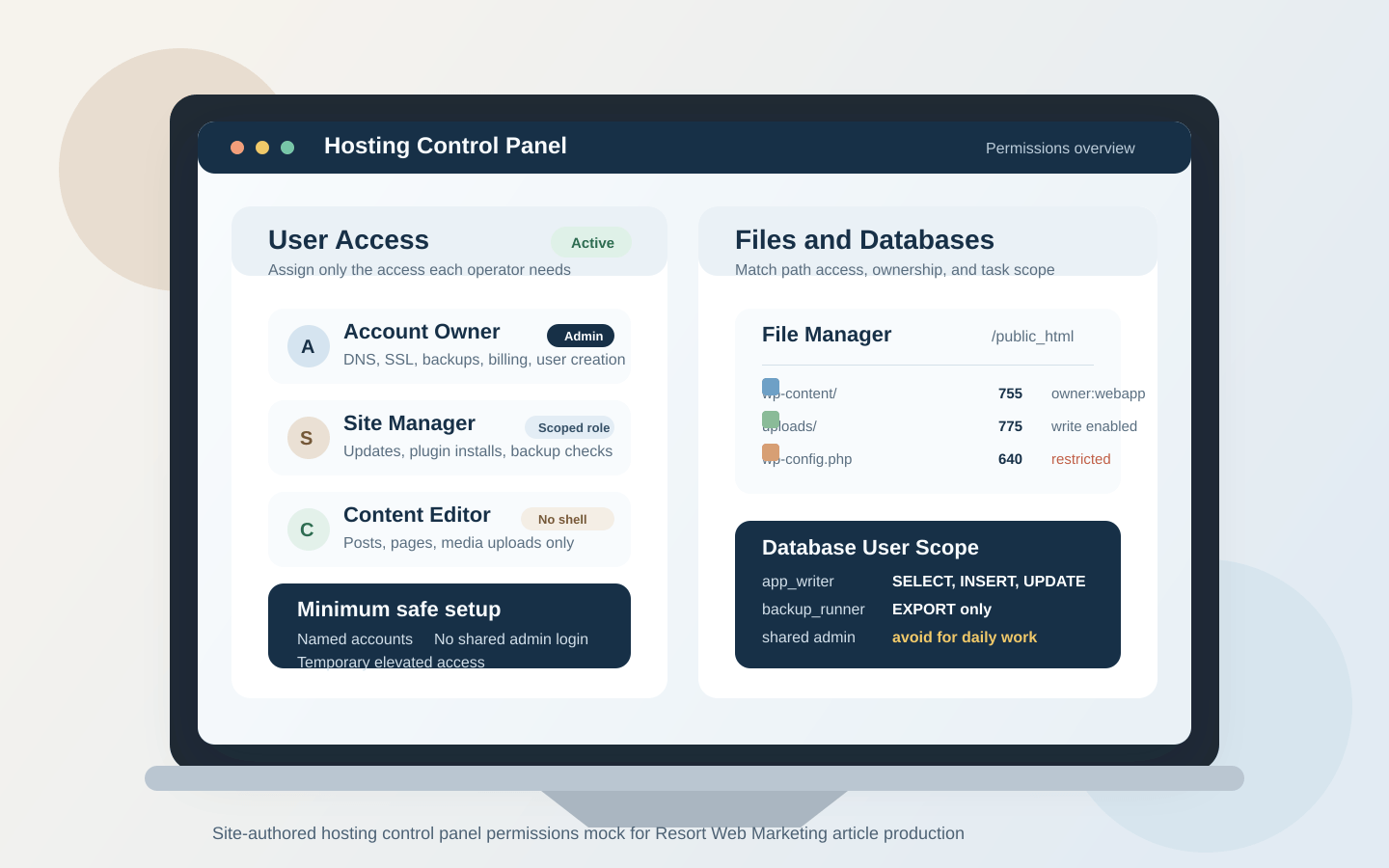
| Account admin | Domain settings, backup policy, SSL, user creation, database users, billing-level account settings | Sharing the admin login for convenience |
| Site manager | WordPress updates, file manager for known paths, plugin/theme maintenance, backup checks | Creating unrestricted database users or changing nameservers without review |
| Content editor | WordPress content, media uploads, limited workflow tools | Control-panel root access, file permissions changes, database tools |
| Developer or contractor | Staging access, specific file paths, versioned deployment steps, scoped database access when needed | Permanent account-wide admin access after the project ends |
| Finance or billing contact | Invoices, renewals, account notices | Website files, databases, cron jobs, SSL configuration |
If your platform supports separate user roles, use them. If it does not, build the same boundary operationally: one named admin account for ownership, separate named accounts for day-to-day work, and documented approval before high-risk changes. A shared master login may feel faster for a week. It becomes slower the moment you need accountability, offboarding, or a clean rollback.
For agencies managing multiple websites under one umbrella, the minimum safe setup is usually one owner-level account, one named technical account per active operator, and temporary elevated access only for specific jobs. That keeps the recovery path clear when someone leaves, a contract ends, or a site moves between teams.
File Permissions Basics: Read, Write, and Execute in Plain Terms
File permissions decide who can open, change, or run something on the server. In plain terms:
- Read means a user or process can view the file or list a directory.
- Write means it can change the file or add and remove items in a directory.
- Execute means it can run a file as a program or access a directory as a navigable path.
That last point confuses beginners because execute on a directory is not “run this folder.” It is closer to “allow access through this path.” If a directory lacks the right execute permission, the web server or control-panel tool may not be able to traverse it even when the file inside looks correct.
Many WordPress environments use directories around 755 and files around 644 as a reasonable baseline, but the better habit is to follow the platform’s documented expectation and avoid copying numbers blindly. The wrong ownership model can break updates even when the numeric mode looks normal. Permissions and ownership are partners; checking one without the other is incomplete work.
A practical way to think about this is simple:
- Make files writable only where updates or uploads genuinely need write access.
- Avoid broad writable settings on application files just to force an install through.
- Treat recursive permission changes as high risk unless you know exactly which path you are changing and why.
If a plugin update fails and the temptation is to make everything writable, stop there. That shortcut often solves the immediate symptom while creating a larger security problem. The right fix is usually to review ownership, the exact writable directory, and the mechanism WordPress is using to write the update.
Common Scenarios: What Access Should Be Allowed, and What Should Stay Restricted
Permission planning becomes easier when you attach it to real tasks instead of abstract fear. Here are the common hosting jobs where boundaries matter.
Uploading content
Media uploads, PDF replacements, and content edits should usually happen through WordPress, not through a broad control-panel file manager account. That gives you cleaner paths, fewer accidental overwrites, and less opportunity for a user to edit the wrong directory. If someone only needs to publish articles or update assets, WordPress-level permissions are normally enough.
Installing plugins or themes
This sits in the middle. It is not as sensitive as changing domain records, but it is more sensitive than editing page copy. The person doing the install should understand the recovery path first: confirm a recent backup, check whether the site uses staging, and know which plugin or theme is currently active. A site manager or technical admin is usually the right role here. A general content editor is usually not.
Editing wp-config.php
This is a restricted task. The file can affect database credentials, salts, debugging behavior, cache rules, and environment-specific logic. If the wrong person edits it, the likely outcome is not subtle. You get a white screen, a database connection error, or a maintenance call that begins with, “Nothing major changed.” Limit access to named technical operators, document the change, and confirm a rollback path before the edit.
Running or restoring backups
Viewing backup status is one permission level. Restoring production is another. I recommend keeping restore authority narrow because restores overwrite state by definition. A junior operator may be able to confirm that backups exist, but the final restore action should usually stay with the account owner or designated technical lead. That protects both uptime and accountability.
Database Access: Least Privilege Beats Shared Admin Credentials
Database access deserves its own discipline because it is easy to treat the database as one locked room and hand everyone the master key. Do not do that unless you enjoy turning simple audits into archaeology.
The safer pattern is straightforward:
- Create a dedicated database user for each application or workflow when practical.
- Grant only the privileges that workflow needs.
- Store credentials in the application configuration or secure documentation, not in a shared chat thread.
- Rotate or remove old users when a project ends.
The privilege set varies by application, so the exact baseline should match the platform and the task. Oracle’s MySQL reference provides the standard list of privileges provided by MySQL. The operational point is simpler than the full matrix: a reporting tool may need read access, while an application install or migration may need broader create, alter, or drop rights for a limited window. Those are different jobs and should be treated that way.
Shared database admin credentials create three avoidable problems. They are hard to rotate because too many people depend on them. They make troubleshooting slower because every actor looks the same. And they make accidental damage wider because the account can do more than the task required. Separate users are less dramatic and much easier to live with.
Cron Jobs and Scheduled Tasks: Reliability Depends on Ownership
Cron jobs feel invisible when they work and strangely expensive when they do not. Scheduled backups, WordPress maintenance hooks, cleanup scripts, imports, and sync tasks all depend on the right ownership, the right path, and the right execution context.
WordPress documents its own cron system, but the operational lesson carries across environments: if the script cannot read the required file, write to the target directory, or authenticate to the database with the saved credentials, the schedule itself does not save you. The task simply fails on time.
Before you rely on a scheduled task, confirm:
- the script path is correct,
- the user or process running it can access the file path,
- the output location is writable if logs or exports are created,
- any database user tied to the task has the required scope, and
- failure is visible somewhere you actually review.
A common mistake is to test the script manually with an admin account, see it work, and assume the scheduled version will behave the same way. It may not. The scheduled task often runs under a different user or context. If the permissions are narrower there, the manual test proves less than people hope.
How Permission Problems Usually Show Up
Permission issues rarely announce themselves cleanly. They surface as broken updates, blocked file paths, partial backups, or application errors that look unrelated until you inspect the path and the account involved.
| Symptom | Common Permission-Related Cause | First Check |
|---|---|---|
| 403 error | Web server cannot read or traverse the expected path, or access is intentionally denied | Directory permissions, ownership, and the exact affected path |
| Failed plugin or theme update | WordPress cannot write to the target directory or the file owner does not match the process doing the update | Writable path, owner/group model, and update method |
| Database connection error | Wrong credentials, wrong user assigned, or insufficient database privileges for the action | Database name, username, password, and current grants |
| Backup job completes partially | Scheduled task cannot access one of the target directories or export locations | Cron user context, source path permissions, destination path permissions |
| Scheduled task runs manually but not automatically | Different execution context between interactive and scheduled runs | Cron user, environment path, and file ownership |
If the visible symptom is a 403 Forbidden response, start with the affected directory and work outward. If the symptom is a failed update, start with the exact directory WordPress needs to change. If the symptom is a database error, start with the configured credentials and the assigned user privileges, not with generalized panic. Permission troubleshooting works best when you follow the resource that failed: path, user, process, then scope.
I would also treat unexplained 404 behavior carefully, even though not every 404 is a permission issue. Wrong deployment paths, partial file copies, or missing rewrite-supporting files can produce similar symptoms. The safe approach is to confirm whether the request is reaching the expected file path before you assume the application itself is at fault.
A Safe Permissions Checklist Before You Go Live
- Every person with control-panel access has a named account, not a shared master login.
- Admin-level access is limited to the smallest practical group.
- WordPress content editors do not also have unrestricted file-manager or database access by default.
- Application files are not broadly writable just to make updates easier.
- Restricted files such as
wp-config.phpare limited to trusted technical operators. - Database users are separate by application or task where practical, with only the privileges required.
- Scheduled tasks have been tested in the same context they will run automatically.
- Backups exist, restore authority is defined, and the affected scope of a restore is understood.
- Support notes or internal documentation record the current owner, key paths, and active database names.
- Offboarding includes removing or downgrading old user accounts before they become forgotten standing access.
If your current setup does not meet all ten, that is not a reason to panic. It is a reason to fix the highest-risk gaps first. On most sites, the first wins are separate named logins, tighter access for configuration files and databases, and a clean review of scheduled tasks and backups.
When to Contact Support, and What Details to Provide
Contact support before the risky change if the task combines several layers at once, such as a file edit plus database move plus SSL change on a live site. Contact support immediately if a permission change has already affected production and you are no longer sure which account, path, or database is involved. If you also need the broader recovery baseline, review Security & Backups alongside your current access map.
The fastest support requests include:
- the user role or account involved,
- the exact error text,
- the affected path, directory, or database name,
- the action you were attempting, and
- whether the issue appears in the browser, the control panel, WordPress, or a scheduled task log.
That level of detail shortens the route to the real problem. It also helps the support team tell the difference between a permission boundary working as designed and a permission boundary blocking work that should succeed.
Manage Hosting if you are reviewing your current controls now, or Request Hosting Plan if you want a cleaner baseline for multi-user hosting, email, files, databases, and backups before the next change window.