If a hosting control panel says it gives you “full control,” the plain version is simple: you should be able to manage your website, your domain settings, your email, and your recovery path without opening five tabs and hoping none of them disagree.
Most people land on this topic with a short list of practical questions. Can I update DNS records without breaking email? Can I issue and renew SSL without a support maze? Can I create mailboxes, open webmail, restore backups, and check logs from the same working area? And, maybe the most honest question of all, how do I tell the difference between a real control panel and a pretty front door that still sends me elsewhere for every important task?
For broader planning context, teams can compare guidance from web.dev guidance before choosing a workflow.
This guide is a checklist, not a glossy features page. I wrote it for site owners, small teams, and agencies that want one clear way to evaluate whether a platform really supports end-to-end management. You will see what to look for in the control panel, where common tasks usually show up, and which “small details” are the ones that tend to turn into a long afternoon.
Written by Nora Finch
Updated May 11, 2026

Why a Control Panel Matters in the First Place
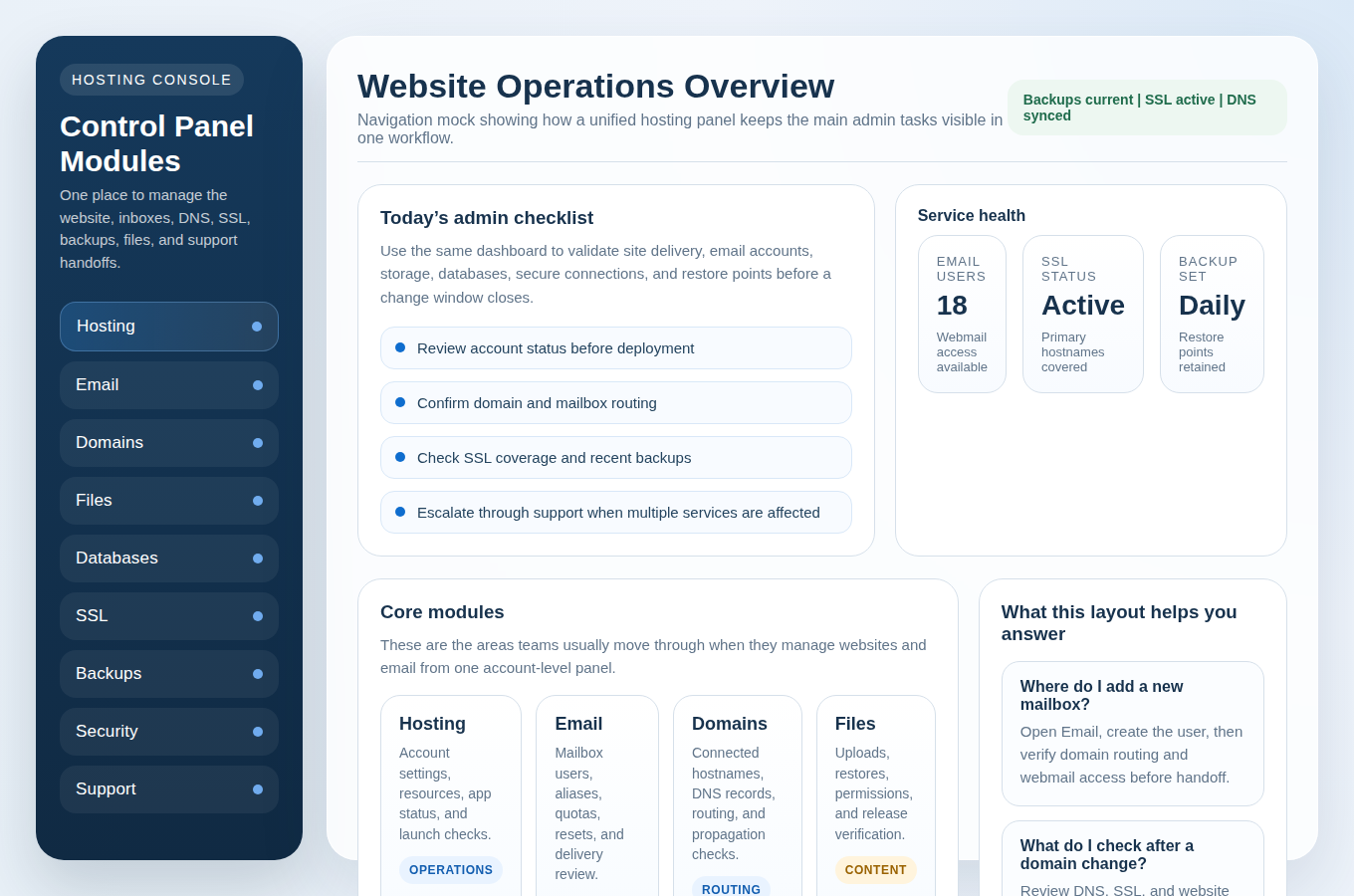
A good control panel is where hosting, email, domains, SSL, files, databases, backups, and support workflows stay connected. That matters because real maintenance work is rarely isolated. A domain change can affect SSL. An SSL issue can look like a website problem. A website change can turn out to be a file or database mismatch. An email problem can really be a DNS problem wearing a fake mustache.
Related implementation details are also covered in MDN Web Docs, which helps keep tool decisions grounded in established practices.
If your current setup sends you to one place for hosting, another for DNS, another for mailboxes, and another for backups, you can still operate that way. Plenty of teams do. The tradeoff is that you need more process discipline because the system itself is not giving you much context. A strong panel reduces guesswork by keeping the moving parts close together.
That is the real promise behind website hosting with a unified dashboard. Not “magic.” Not “everything runs itself.” Just a cleaner operating picture so you can confirm what changed, what depends on it, and what to check next.
The Short Answer: What Full Control Should Include
If you want a fast test, this table is the quick map. A platform does not need to be flashy. It does need to let you handle the essentials without awkward workarounds.
| Area | You Should Be Able To Manage | What to Verify |
|---|---|---|
| Domains & DNS | A, AAAA, CNAME, MX, and TXT records | Record editing is clear, changes save correctly, and you can tell which records affect web vs. mail |
| SSL & HTTPS | Certificate issue status, renewals, hostname coverage, forced HTTPS | You can see status plainly and confirm redirects after activation |
| Email Hosting | Mailbox creation, aliases, forwarding, spam controls, quotas | Account changes are fast and tied to the right domain |
| Webmail | Browser login, basic mailbox access, password resets or access help | The login path is obvious and usable for non-technical staff |
| Backups | Backup frequency, retention, restore points, restore scope | You know what is included and how recovery actually works |
| Files & Databases | File manager or SFTP/FTP details, database creation, user permissions, import/export | The panel keeps file and database tasks visible in the same workflow |
| Security & Logs | Login protection, alerts, firewall basics, malware checks if offered, error/access logs | You can tell what happened before opening a support ticket |
| Support Workflow | Clear escalation path for account, DNS, SSL, website, and email issues | You know when to self-manage and when to Contact Support |
Domains & DNS Essentials: The Records You Actually Need
This is the section where “full control” either feels real or starts to wobble. You should be able to manage the main record types yourself from a clear editor inside Domains & DNS.
- A record: points a hostname to an IPv4 address. This is common for the main website.
- AAAA record: the IPv6 version of the same idea.
- CNAME record: points one hostname to another hostname. Useful for subdomains or service aliases.
- MX record: tells email where to go. These matter a lot, and they do not enjoy being guessed at.
- TXT record: used for verification and email policies such as SPF, DKIM, or DMARC-style setups.
The panel should help you answer these questions quickly:
- Which records control the website?
- Which records control email delivery?
- What was changed most recently?
- How long might propagation take before the new record is seen everywhere?
- Can I export, copy, or review records before a domain transfer or provider move?
A practical example helps. Suppose you are moving the website to a new host but keeping email where it already works. In that case, the control panel should let you change the website routing records without accidentally flattening the MX or TXT records that keep your mail flowing. If you cannot tell web records from mail records at a glance, that is not “full control.” That is a treasure hunt.
It is also worth checking whether the platform gives you a clean domain-transfer workflow or at least enough visibility to prepare for one. Even if you are not transferring today, you want to know whether leaving later would be straightforward. Vendor lock-in usually announces itself by making exports, record review, or nameserver changes harder than they need to be.
SSL & HTTPS Management: It Should Be Visible, Not Mysterious
Your control panel should make SSL management feel boring in the best possible way. You should be able to see whether a certificate is active, which hostnames it covers, whether it renews normally, and whether HTTPS is enforced after activation.
Here is the checklist I would use:
- Provisioning: Can you issue or request a certificate without a confusing detour?
- Coverage: Does the panel show which domain names are included?
- Renewal visibility: Can you tell whether renewals are automatic or whether action is required?
- Forced HTTPS: Is there a clear way to redirect visitors to the secure version?
- Status clarity: If the certificate is pending or failed, does the panel explain why in plain language?
This matters because “the certificate exists” and “the site is fully secure on the public hostname” are not always the same thing. A good panel helps you check both. If you attach a domain, issue SSL, and then still have to guess whether the www version, the root domain, and the login pages are all covered, you do not have a finished workflow yet.
Email Hosting Basics: More Than “Mailbox Created”
A control panel that handles email hosting well should let you do more than create a single inbox and move on. The basics you should expect are:
- Mailbox creation and deletion with a clear tie to the right domain.
- Aliases and forwarding for role-based addresses such as
sales@orsupport@. - Catch-all controls if the platform supports them, including enough warning to use them carefully.
- Spam filtering options or mailbox security settings that are easy to understand.
- Quota or storage visibility so you can tell when a mailbox is nearing limits.
- Sending guidance or limits so bulk sending or unusual activity does not become a surprise.
What should you test in practice? Create a new mailbox, add an alias, confirm login access, and verify that the corresponding DNS records are visible nearby when needed. If you have to ask support where the mailbox lives, where the alias lives, where the spam controls live, and where the mail routing lives, the platform may be technically complete but operationally clumsy.
I also like checking how the panel handles offboarding. Can you reset a password, suspend access, or forward messages temporarily when an employee leaves? That is not a flashy feature. It is just day-to-day reality.
Webmail Access: What “Fast Access” Should Look Like
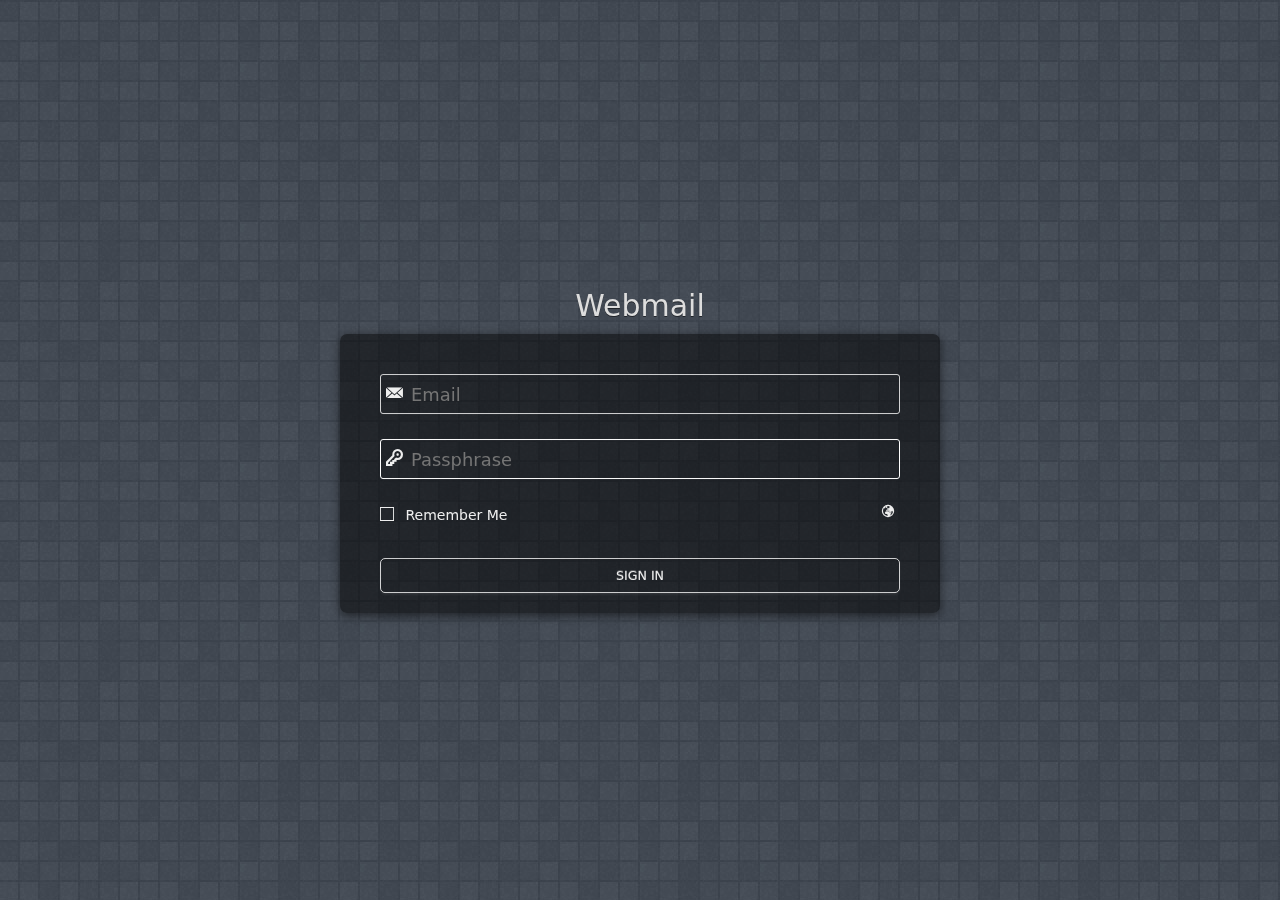
The short answer is that webmail should be easy to reach, easy to explain to a teammate, and easy to test during a busy week. A browser-based inbox is not only a convenience feature. It is also your fallback when a local email client is misconfigured, a laptop is unavailable, or a team member needs quick access without a full device setup.
When you review webmail access, check these points:
- The login URL is obvious and consistent.
- The platform explains which username format to use.
- Password resets or mailbox help are easy to find.
- The inbox opens quickly enough for normal work.
- Staff can verify basic send/receive behavior without extra technical steps.
A simple team test works well here. Have one person log in from a browser they do not normally use, send a message internally, receive a reply, and confirm that folders, attachments, and search behave the way your team expects. If that “fast access” test feels weirdly fragile, it is worth fixing before it becomes an emergency path.
Backups & Restore Workflows: The Recovery Questions to Ask Before You Need Them
Backups only count as useful if you can answer four practical questions without squinting:
- How often are backups taken?
- How long are they kept?
- What do they include: files, databases, email, or the whole account?
- How does a restore actually happen?
That fourth question matters most. Some panels make restores self-service. Others expose restore points but route the actual recovery through support. Either model can work, but the panel should make the workflow obvious. You should not discover the restore policy while the site is already down.
My practical checklist looks like this:
- Backup cadence: daily, more often, or manual plus scheduled.
- Retention: enough history to recover from slow-moving mistakes, not just today’s accident.
- Granularity: the ability to restore a whole site, a database, or files depending on the incident.
- Pre-change habit: the panel makes it easy to confirm a restore point before risky updates.
- Recovery test: there is a safe way to confirm the process works, not just trust that it probably does.
If backups are central to your risk planning, the next related guide to open is Security & Backups. That page covers the broader safety side, while this checklist stays focused on what the control panel should let you verify directly.
Files & Databases: Full Control Means Both, Not Just One
A surprising number of “easy” hosting environments give you partial control over files and awkward control over databases, or the reverse. For a website owner, both matter because site changes often involve both.
For files, look for:
- A browser-based file manager or clear SFTP/FTP access details.
- Directory visibility that makes sense.
- Permission handling that is specific, not dangerously broad.
- Upload, replace, and archive options that do not feel hidden.
For databases, look for:
- Database creation and deletion controls.
- User creation and permission management.
- Import and export options.
- Enough labeling to tell which application uses which database.
Here is the simple test: if you update site files, can you also confirm the related database and user settings in the same session? If you restore a database, can you verify that the matching files are still correct? A platform that calls itself full-service but treats databases like a side quest is leaving a gap in the middle of the workflow.
Uptime, Performance, and Operational Visibility
Not every control panel will expose advanced performance tools, and that is fine. What matters is whether it gives you enough visibility to manage the account responsibly.
Useful controls include:
- Resource visibility: storage, bandwidth, mailbox usage, or other account-level limits.
- Caching or CDN options: if offered, they should be easy to understand and easy to disable when troubleshooting.
- Log access: error logs, access logs, or security-related logs that help explain what happened.
- Status cues: anything that helps you distinguish a website issue from a DNS, mail, or account issue.
You do not need a giant wall of metrics to benefit from the panel. You do need enough operational visibility to answer the first question after a problem appears: is this the website, the domain, the mailbox, the certificate, or the account itself?
Security Controls to Expect Without Getting Lost in Jargon
Security settings are easy to overcomplicate, so here is the plain version. Your control panel should help you protect access, spot unusual activity, and keep the basics visible.
- Brute-force protection: safeguards against repeated bad login attempts.
- Malware scanning or alerts: if the platform offers it, the results should be understandable.
- Firewall basics: enough information to know whether access controls exist and when they are blocking traffic.
- Security notifications: alerts for unusual logins, certificate issues, quota problems, or account events.
- User access control: separate logins or permissions where appropriate instead of one shared super-account for everyone.
In other words, the panel should help you notice trouble early and limit damage when something goes wrong. It should not require you to become a security specialist just to understand whether the account is healthy.
A Practical 10-Point Checklist Before You Commit to a Platform
- Can I manage DNS records for both web and email without losing track of what each one does?
- Can I see SSL status, coverage, and HTTPS behavior clearly?
- Can I create, edit, and secure mailboxes without opening a separate admin product?
- Can my team reach webmail quickly when they need a browser-based fallback?
- Can I tell how often backups run, what they include, and how restores work?
- Can I access both files and databases with enough control for normal maintenance?
- Can I review logs or alerts before escalating a problem?
- Can I understand resource limits and account status without guessing?
- Can I move or export what I need if I ever switch providers?
- Can I reach a real support path when the task is no longer routine?
If several of those answers are fuzzy, the panel may still be usable, but it is probably not giving you the level of control the sales copy suggests. That does not mean you need the most advanced setup on the market. It means you need a setup that respects how website and email work together in real life.
Final Takeaway: Look for Control, Clarity, and an Exit Path
The best control panel is not the one with the longest feature list. It is the one that lets you manage the full hosting and email picture with clear steps, visible dependencies, and less lock-in. If your business later needs client portals or custom admin tooling layered on top of that hosting foundation, that is usually a separate build decision where outside custom web development services may be worth evaluating on their own. The hosting control panel still needs to stand on its own first.
If you are comparing options now, the next question is straightforward: can this platform help me manage the whole stack without confusing workarounds? If yes, you probably have a solid starting point. If not, it is better to spot that now than during a DNS change on a Friday afternoon.
Manage Hosting if you already know what you need, or Request Hosting Plan if you want a cleaner starting point for hosting, email, DNS, and day-to-day account control.