Why one control panel matters when you manage several sites and inboxes
Small teams do not need more tools. They need fewer places to forget a password. When you manage multiple websites and professional mailboxes, the real win is having domains, DNS, email, SSL, files, databases, and backups in one panel instead of spread across tabs, vendors, and “temporary” notes that become permanent in about six minutes.
A centralized control panel reduces context switching and makes everyday work predictable. You can check whether a site is online, see if a mailbox is full, confirm a DNS change, or restore a backup without digging through separate systems. That is the difference between operating a website and babysitting it.
If you want a broader view of what a hosting dashboard should cover, the control panel overview and the website hosting page are good starting points.
What to centralize in one place
The useful bundle is straightforward:
- Domains and DNS so you can point records where they belong.
- Websites so each site has its own files and settings.
- Databases for apps, CMS installs, and restores.
- Mailboxes, aliases, and forwarding for day-to-day email.
- Webmail for access when desktop clients are not practical.
- SSL certificates for encrypted traffic.
- Backups for recovery when somebody’s “small change” becomes a large incident.
Modern hosting panels documented by projects like Hestia Control Panel and Opterius Panel follow this same operational model: one dashboard, many moving parts, fewer surprises.
A simple operating model for agencies and small teams
The cleanest workflow is boring, which is usually a compliment in operations.
- Separate client or brand assets into their own site, mailbox, and DNS set.
- Use naming conventions that make ownership obvious, such as brand-name-admin or project-name-billing.
- Document access so you know who can change DNS, create mailboxes, or restore backups.
- Keep recovery paths visible so a backup restore is not a treasure hunt.
For teams that handle several domains, this is where the domains and DNS workflow matters as much as the website itself. The structure should be obvious enough that a teammate can step in without reverse-engineering your habits from a sticky note.
How webmail, forwarding, aliases, and shared mailboxes fit together
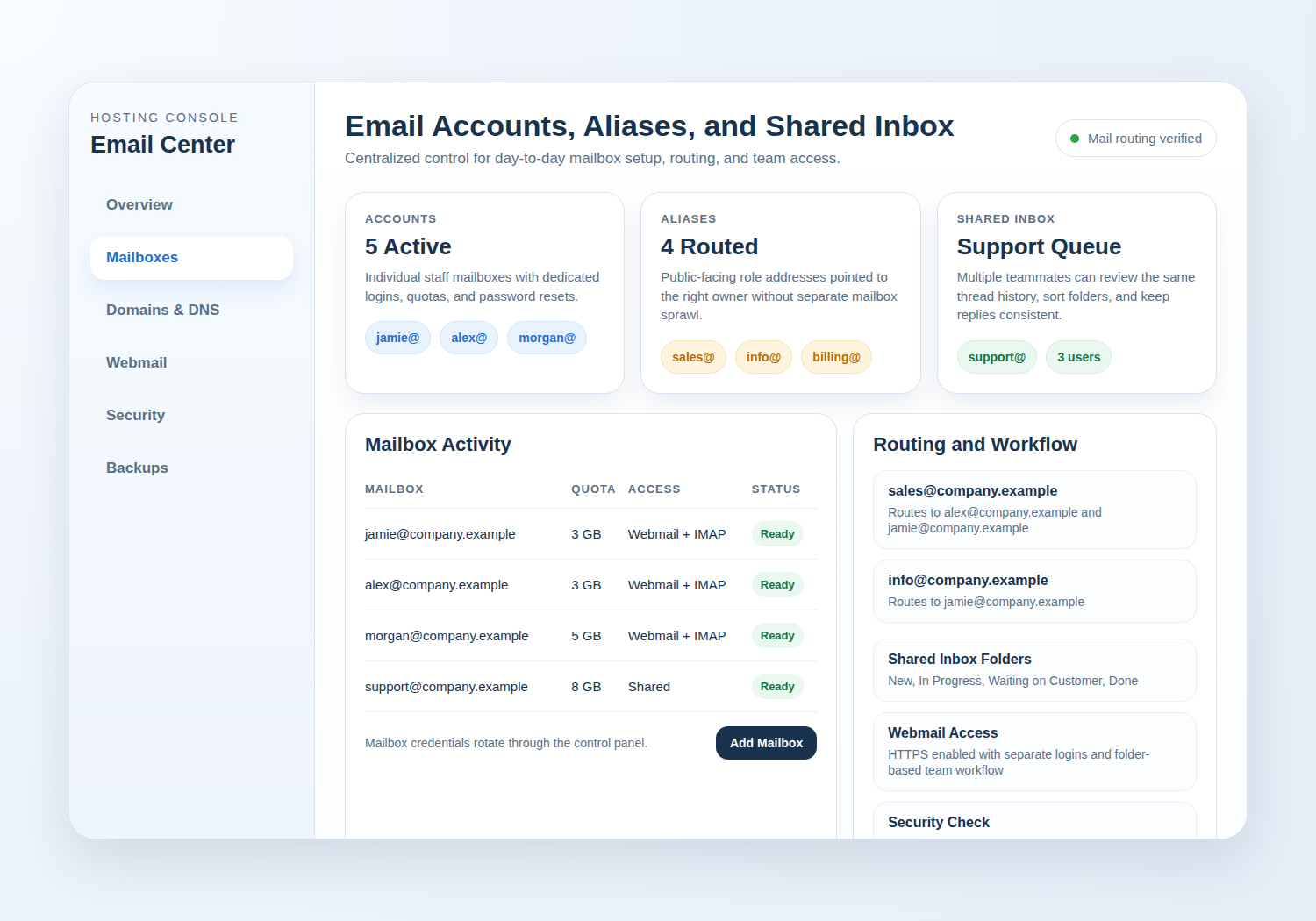
Email is not just “an inbox.” It is a small operating system for communication. A good setup should let you create role-based mailboxes, set up aliases for common addresses, forward mail when needed, and give people webmail access when they are away from their main device.
That matters for small teams because not every message needs a new mailbox. Sales, support, billing, and admin can often be handled with a combination of shared inboxes and aliases. If you want a deeper walkthrough, see email hosting and webmail access.
A practical rule: use shared mailboxes for team-owned workflows, aliases for routing, and forwarding only when you want a copy somewhere else. Forwarding is useful; it is also the fastest way to create quiet confusion if nobody knows where the authoritative copy lives.
DNS and domain hygiene
DNS mistakes are usually small, right up until they are not. Keep records in the system you actually manage, not in three spreadsheets and someone’s browser bookmarks. When records change, know which team member owns the change, what it affects, and how long propagation may take.
For subdomains, access control matters just as much as record editing. Cloudflare’s subdomain setup guidance is a useful reference for thinking about who can edit what and why DNS structure should stay clean. When you need to verify registration data or check domain state, ICANN’s Lookup and RDAP guidance are the right tools, not guesswork and hope.
If you manage multiple brands, write down the basics for each one: registrar, nameservers, DNS owner, renewal date, and which email accounts matter if the domain needs attention. That is the sort of document everyone ignores until a domain expires. Then it becomes the most interesting file in the office.
Security and continuity basics
Security in a small team is mostly about reducing avoidable mistakes. SSL should be easy to issue and renew. Backups should be scheduled, visible, and restorable. Email should have spam filtering and enough access control that one compromised password does not become a team-wide event.
For a practical browser-level check, the WordPress.org plugin ecosystem and related backup tools show how buyers now expect backup and restore workflows to be visible, not assumed. A related reference is JetBackup, which reflects the general expectation that restore points and retention should be easy to find.
Do not treat backups as a checkbox. Test a restore. Confirm that files, databases, and mailboxes can be recovered in a sane order. The backup that cannot be restored is just expensive decoration.
What to look for in a hosting platform
Before you choose a platform for multiple sites and mailboxes, check whether it gives you:
| Area | What good looks like |
|---|---|
| Domains and DNS | Easy record editing, clear ownership, and obvious propagation handling |
| Mailbox creation, aliases, forwarding, spam controls, and webmail access | |
| Sites and databases | Separate site management, file access, and database tools |
| SSL | Simple certificate management with visible status |
| Backups | Scheduled backups, retention settings, and restores you can actually use |
| Support | Responsive help when DNS or email delivery turns into a real issue |
If you are comparing options, the security and backups page and the support page should help you judge what the platform will feel like after the sale, which is where the work usually begins.
When external tools still help
A good control panel does not remove the need for external visibility. It just reduces how often you need to leave the dashboard.
- Use ICANN Lookup to confirm a domain’s registration status or ownership data.
- Use Cloudflare’s DNS documentation to understand how subdomain delegation and DNS hygiene should work.
- Use registrar or mailbox diagnostics when a record or message behaves oddly.
External tools are most useful when something looks off, not as a replacement for owning the workflow. The control panel remains the source of action; the outside tools are there for confirmation.
A practical checklist for small teams
- Can you see all sites, domains, and mailboxes from one place?
- Can you create or update DNS records without opening a support ticket?
- Can you access webmail, aliases, and forwarding from the same account area?
- Can you restore files, databases, and email from backups you control?
- Can you tell who changed what, and when, without detective work?
- Can support help when the panel is not enough?
If the answer to several of those is no, the platform is not really designed for a small team. It is designed for a future you will spend time untangling.
Manage hosting with less friction
For agencies, freelancers, and small businesses, the goal is not maximal complexity. It is predictable control. A solid panel lets you manage hosting, email, DNS, SSL, backups, and file access without turning every task into a separate project.
To keep the rest of the workflow clean, start with the core services: website hosting, email hosting, control panel, and the related contact path for support or plan questions. If you need a plan recommendation, the practical next step is to contact support and request a hosting plan that matches the number of sites and mailboxes you actually operate.