Before you move a domain to a new hosting provider, check the pieces that keep the site and email alive. A transfer can look routine and still cause avoidable trouble if the registrar account is locked down, the DNS record set is incomplete, or mail depends on records that no one exported.
What is actually registered? Which DNS records route the website and the mailbox? Are SPF, DKIM, and DMARC still pointing where they should after the handoff? And when is the safest window to make the change so users notice the least? Those are the questions that matter before you click anything that cannot be undone in a hurry.
This checklist is built around the kind of details listed in ICANN Lookup, the ICANN transfer policy, and practical DNS timing guidance from Cloudflare’s TTL documentation. The goal is not to promise a zero-risk transfer. The goal is to make the risk small, documented, and manageable.
By the end, you should know how to confirm registrar access, export DNS records, protect email routing, choose a sensible transfer window, and test the result without guessing. If you need a refresher while you work, keep Domains & DNS and Email Hosting open in another tab.
Useful references while you work:
- Domains & DNS for record management and propagation checks.
- Email Hosting for mailbox routing, aliases, and webmail basics.
- FAQ for common setup questions and platform behavior.
- Contact Support if the registrar or DNS setup is unclear.
Quick checklist
- Confirm who controls the registrar account and whether the registrant details are current.
- Export or document every active DNS record before any nameserver or transfer change.
- Check whether email depends on MX, SPF, DKIM, DMARC, or forwarding rules that must survive the move.
- Choose a low-traffic transfer window and reduce TTL in advance if your setup allows it.
- Verify the website, forms, mail delivery, and authentication records after the transfer is complete.
Terms you should know
| Term | Plain meaning | Why it matters before a move |
|---|---|---|
| Registrar | The company where the domain is registered and managed. | If you cannot log in, you cannot approve or monitor the transfer. |
| Registrant | The listed owner or holder of the domain registration. | Ownership details must match the real decision-maker before you start. |
| EPP / auth code | A transfer code used to approve a domain move between registrars. | Without it, many transfers stop before they begin. |
| Nameserver | The server list that tells the world where DNS records live. | Changing nameservers too early can make records disappear from view. |
| DNS record | A rule that points traffic for the domain to a service. | Missing records can break the site, email, verification, or redirects. |
| TTL | Time to live, or how long a DNS answer can stay cached. | Lower TTLs can help changes spread faster, if planned in advance. |
| MX record | The record that tells the internet where to deliver mail. | If MX is wrong, mail can bounce or land in the wrong place. |
| SPF, DKIM, DMARC | Email authentication records and policies. | These help receiving servers trust your mail after the transfer. |
1. Confirm registrar access and ownership details
The first check is administrative, not technical. Make sure the right person can log in, approve changes, and recover the account if the transfer stalls. In practice, many “DNS problems” are really account problems wearing a trench coat.
What to verify
- Can the owner or administrator access the current registrar account without relying on an old employee, agency login, or expired recovery email?
- Do the registrant name, organization, and contact details match the intended owner?
- Is the domain unlockable, and is a transfer code available if the receiving provider requests one?
- Is domain privacy or contact masking hiding information you need to review before the transfer?
- Are there any pending disputes, holds, or policy restrictions that should be cleared first?
Common pitfalls
- An old agency still controls the registrar login, so the transfer request sits unanswered.
- The registrant email address belongs to someone who left the company years ago.
- The domain is locked, but no one checked whether that lock is intentional or just leftover cleanup.
- The business thinks it owns the domain, but the legal registrant record says otherwise.
If the ownership data is stale, fix it before the transfer. That is slower on day one, but much cheaper than arguing with a locked account later. For the public-facing version of this work, you can use the domain lookup tools above and keep your internal ownership notes in the control panel or ticketing system. If the account setup is messy, it is reasonable to stop and ask for help through Contact.
2. Export current DNS records before making changes
This is the section people skip when they are confident and regret when they are tired. Before any transfer or nameserver change, capture the full record set for the domain. If the move goes smoothly, you will not need the backup. If it does not, you will be very glad you have it.
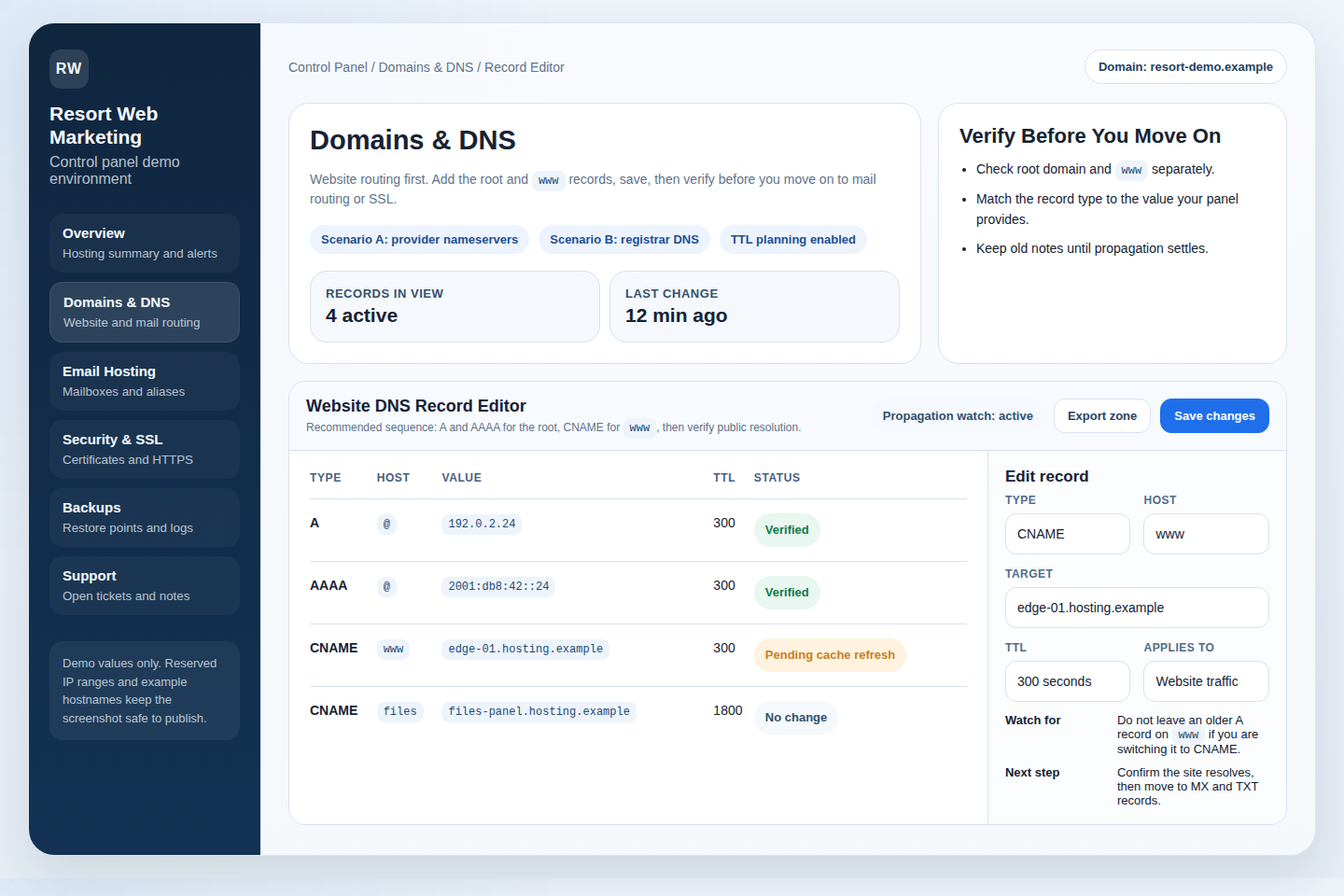
The screenshot above is a good model for what you want to preserve: the active records, not just the ones you remember. Export the zone file if your control panel offers it. If not, document each record by hand or take clear screenshots of the existing entries.
Records to capture
- A and AAAA records for the website and any subdomains that point to a server.
- CNAME records for aliases such as
www, verification hosts, or service-specific subdomains. - MX records that route mail to the current provider.
- TXT records for SPF, DKIM, DMARC, verification tokens, and ownership checks.
- NS records if the domain delegates subdomains to another service.
- CAA records if your certificate workflow depends on a specific certificate authority.
What to document for each record
| Field | Why it matters |
|---|---|
| Host or name | Tells you which host or subdomain the record applies to. |
| Type | Shows whether the record routes web traffic, mail, or verification. |
| Value or target | Points to the correct server, service, or verification endpoint. |
| Priority | Important for MX and some service-specific records. |
| TTL | Helps you judge how quickly changes should appear after the move. |
One common failure mode is to transfer the domain and forget a quiet record that was never on the website itself. The site stays up, the form submissions fail, or a third-party verification token disappears. Nothing dramatic breaks, which makes the problem more annoying. A good DNS export prevents that sort of slow surprise.
If you need the broader context for record management, the Domains & DNS page is the right place to compare record types and understand what each one does.
3. Check email routing, MX records, and authentication records
Email is usually the most fragile part of a domain move because it depends on more than one record and more than one expectation. A domain transfer may not change the mail system at all, but if the MX and authentication records drift, mail can still fail or arrive with poor trust scores.
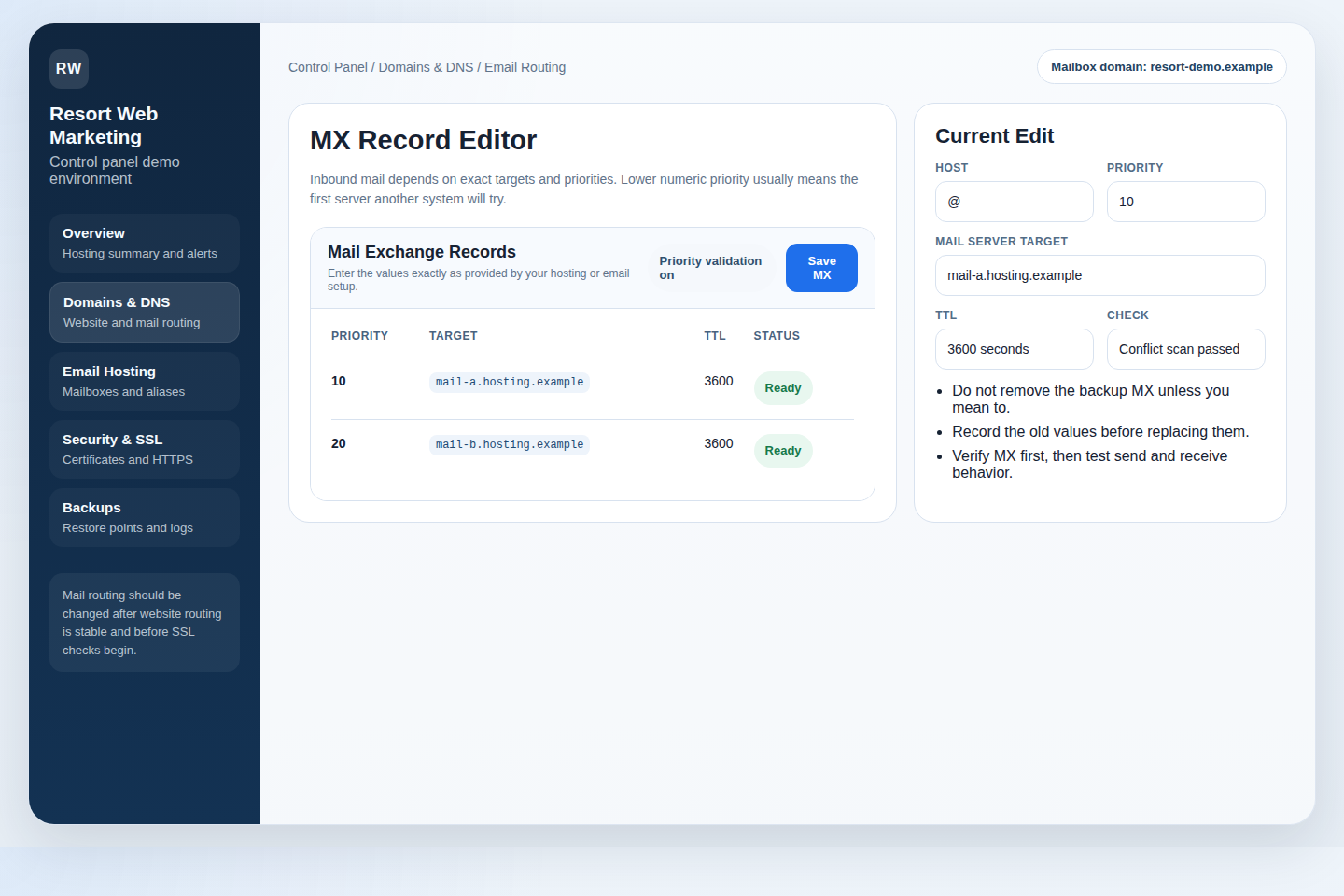
The MX view above is the record most administrators should inspect first, but it is not the whole story. SPF, DKIM, and DMARC also need to remain aligned with the provider that actually sends and receives mail. If your new hosting provider includes email, confirm exactly which settings they expect you to keep and which ones they will manage for you.
What to check
- Where does inbound mail currently point, and does that routing stay valid after the transfer?
- Does the domain use forwarding, catch-all mailboxes, or aliases that depend on the current provider?
- Are SPF records still authorizing the servers that send mail for the domain?
- Are DKIM keys still published, and does the signing service still match the sender?
- Is DMARC set to monitor, quarantine, or reject, and do you want that policy to stay the same during the move?
Typical failure patterns
- The website moves successfully, but the old MX records still point mail to a decommissioned server.
- SPF is copied incompletely, so outbound mail starts failing authentication checks.
- DKIM is left behind when the email provider changes, so receivers treat messages as suspicious.
- DMARC is configured for a stricter policy than the team realizes, and a small DNS mistake becomes a bigger mailbox issue.
For a practical reference on SPF setup, Google’s SPF guidance is useful even if you do not use Google Workspace. The underlying point is simple: if mail depends on the domain, confirm the domain still authorizes the right sender after the move. If you want a calmer overview of hosted mail options and webmail access, review Email Hosting before you switch providers.
4. Plan the transfer window and TTL timing
Timing matters because DNS is not a live chat system. Some changes spread quickly, some do not, and cached answers can linger longer than expected. The goal is not to force instant propagation. The goal is to make the handoff predictable enough that you can explain it to the rest of the team without hand-waving.
When to schedule the change
- Pick a low-traffic window for the business, not just for the hosting team.
- Avoid the middle of a launch, campaign, payroll cycle, or other timing-sensitive activity.
- Leave enough time to test website and email behavior before the day ends.
- Make sure the people who can approve changes are available if the registrar asks for confirmation.
How to handle TTL
If you control the DNS zone before the transfer, lower the TTL for the records you expect to change. Cloudflare’s TTL documentation explains why shorter cache times can help updates appear sooner. Do this in advance, not at the last minute. A TTL that is already low is useful; a TTL that is lowered five minutes before the switch is mostly theater.
| Timing step | What to do | Why it helps |
|---|---|---|
| 24 to 48 hours before | Lower TTL on records likely to change. | Cached values expire sooner after the move. |
| Day of transfer | Keep the DNS record set documented and unchanged unless required. | Minimizes confusion while the transfer is in flight. |
| After the transfer | Restore normal TTL values once the setup is stable. | Returns the zone to a standard operating state. |
There is a practical reason for this sequence. A domain move is easier to recover from when you know what changed, when it changed, and what the prior values were. That is what operations teams mean when they say “document the change window.” It is not a slogan. It is just the cheapest form of insurance.
5. Verify website and email after the transfer
Do not assume a successful transfer means a successful service cutover. Once the domain is with the new provider, test the things users actually rely on. A green registrar status does not pay your support inbox, and it does not tell you whether mail still reaches the right place.
Test matrix
| Test | Expected result | Warning sign | What to check next |
|---|---|---|---|
| Home page and key pages | Domain loads on the intended host. | 404, parked page, or old content. | A/AAAA/CNAME targets and caching. |
| Forms and contact paths | Messages submit and arrive where they should. | Silent failure or no confirmation. | MX, SPF, send routing, and form handler settings. |
| Inbound email | New messages land in the intended mailbox. | Bounces, delays, or mail in the wrong inbox. | MX priority, mailbox setup, forwarding, and spam filters. |
| Outbound email | Messages send without obvious authentication issues. | Warnings about suspicious mail or failure to send. | SPF, DKIM, and DMARC alignment. |
| SSL / HTTPS | The site loads securely without certificate warnings. | Browser trust errors or mixed-content alerts. | Certificate status, issuance, and forced HTTPS settings. |
What good looks like
- The website resolves to the correct server from several networks or devices.
- Mail arrives in the expected inbox and replies are delivered normally.
- Authentication records still match the sending service.
- No one on the team is surprised by a missing alias, forwarding rule, or mailbox.
For a practical reminder of how the mailbox side should look, the control panel and webmail pages on this site are worth checking alongside the transfer. If you notice anything off, raise it quickly through Contact Support rather than waiting for the problem to become a pattern.
What to do if the move exposes a problem
- Keep the previous DNS export so you can restore a known-good state quickly.
- Check whether the issue is local cache, record propagation, or an actual misconfiguration.
- Confirm whether the problem affects only web traffic, only mail, or both.
- Use the registrar and hosting support channels you already documented instead of searching from scratch mid-incident.
That last point matters more than it sounds. When a transfer goes wrong, people lose time looking for the right login, the right screenshot, and the right support path. Preparation turns that search into a checklist instead of a scavenger hunt.
Bottom line
A domain transfer becomes much easier when you treat it as a dependency check rather than a single action. Confirm who controls the registrar account. Export the DNS records before touching anything. Protect email routing and authentication. Pick a sensible window. Then test the site and mail from the outside, where users live.
- Ownership first: make sure the registrar account and contact data are correct.
- DNS second: export every live record, not just the ones you remember.
- Email third: protect MX, SPF, DKIM, and DMARC before the move.
- Timing matters: lower TTL early and transfer when support is available.
- Verify afterward: test website access, forms, mail, and SSL before you call it done.
If you want help preparing a move, start with Website Hosting, Control Panel, and Contact Support. If you are still deciding what level of service you need, a quick review of FAQ can also save you from making a tidy mistake with expensive consequences.