Most hosting feature lists are written to sound complete, not to help you decide. That is the first thing I remind myself when I compare plans. The useful question is not whether a provider has a long checklist. The useful question is whether the checklist tells you how the service will behave on an ordinary Tuesday when you need to add a mailbox, restore a file, change a DNS record, or ask for help before a deadline.
If you have ever asked yourself, “How much storage is enough?” “Does bandwidth matter for my business?” “What does full control actually mean?” or “Which of these lines are real and which are just brochure filler?”, you are in the right place. This is a plain-English guide for small business owners who want a better way to compare hosting options without getting trapped in technical theater.
Two references are worth keeping nearby while you read. Cloudflare’s plain-language overview of DNS records is a good reminder that a feature list should explain what you can actually change, not just claim that DNS is included. And if a plan says SSL is included, Let’s Encrypt’s getting started guide is a useful benchmark for what certificate automation should look like in practice. If you need to verify domain details, ICANN Lookup is the right place to check the public record.
By the end, you should be able to read a hosting feature list like a buyer, not a tourist. You will know which specs affect daily work, which control panel features matter most, what to ask about backups and support, and how to compare providers with a simple checklist that keeps the decision grounded in operations.

What a Hosting Feature List Usually Includes
A feature list usually mixes four different things: capacity, access, protection, and support. That mix is the source of most confusion. One line tells you how much space you get. Another line tells you how you reach the files. Another promises security. Another mentions support. None of those lines mean the same thing, and none should be treated as equal.
When I read a list, I separate the features into plain categories:
| Feature | Plain meaning | Why it matters | What to ask |
|---|---|---|---|
| Storage | How much room you get for files, email, and databases | Determines whether the site and mailbox can grow without immediate cleanup | Is the storage shared across website files, email, and backups? |
| Bandwidth | How much data can move in and out | Affects how the site behaves during traffic spikes and large downloads | Is bandwidth metered, capped, or described as “unlimited” with conditions? |
| Email accounts | Mailboxes, aliases, forwards, and shared addresses | Determines whether staff can use professional email under the company domain | How many accounts, aliases, and catch-all options are included? |
| Databases | Where structured site data lives | Needed for content management systems, forms, and dynamic sites | How many databases can I create, and can I manage users separately? |
| SSL | Certificate-based HTTPS security | Helps protect logins and builds trust in the browser | Is SSL automatic, renewable, and included for all domains or just one? |
| Backups | Copies of site and account data | Lets you recover from mistakes, outages, or corrupted files | How often are backups taken, how long are they kept, and how are restores handled? |
| Support | How you get help when something breaks | Important when email, DNS, or access needs to be fixed quickly | What channels are available, and are they included in the plan or treated as extras? |
| Account access | Who can log in and change settings | Defines control, ownership, and whether the business can manage its own setup | Can I create separate users or roles, or is there only one shared login? |
The table looks simple because the business decisions underneath it are simple. You are not buying words. You are buying access, control, and recovery paths. If a feature list cannot explain those things clearly, it is not helping you compare the plan. It is helping the plan look polished.
There is a useful distinction here: a feature is not the same thing as a usable feature. A provider may say “email included,” but that can mean one mailbox, a handful of aliases, or a full hosting environment with webmail, spam controls, and authentication settings. The sentence is the same. The operational value is not.
Which Specs Affect Daily Use
Storage: more than a number on a page
Storage is the easiest number to understand and the easiest one to misread. Ten gigabytes sounds generous if you imagine a brochure site. It sounds tight if you store product photos, attachments, logs, and several mailboxes in the same account. The real question is not “How big is the number?” but “What is included in that number?”
Ask whether the storage covers only the website files or whether it also covers email, databases, and backups stored on the account. A feature list that does not explain the storage boundary is leaving out the part that matters most. In practical terms, storage pressure usually shows up first in predictable places: media uploads, inbox growth, backup retention, and old files nobody has cleaned out because nobody was asked to.
If the provider describes storage as “unlimited,” do not treat that as a pass. Ask for the actual policy. Unlimited often means the provider has conditions that kick in long before anyone imagines they are done. That is not a scam; it is just a business rule wearing a friendly shirt.
Bandwidth: the part people only notice when it hurts
Bandwidth is the amount of data that moves between the server and visitors. A small service site with light traffic may never come close to a limit. A busy campaign page, media-heavy landing page, or file download area can behave very differently. Bandwidth matters because it tells you how the site should cope when the audience shows up in larger numbers than expected.
The clue is not just the number itself. It is how the provider frames the limit. Is the bandwidth capped? Is there a fair-use policy? Is extra traffic throttled, billed, or simply ignored until there is a problem? The feature list should not make you guess. If it does, ask for an example of what happens during a traffic spike.
For a small business, that question is usually more useful than a raw figure. A plan that handles a burst cleanly is better than a plan that looks large but becomes anxious the moment people visit at the same time.
Email and database management: where daily work lives
Email is not a side feature for most businesses. It is part of the operating system. If a hosting plan includes email, check whether it includes actual control: separate accounts, aliases, forwarding, webmail access, spam filtering, and a sensible way to reset passwords or delegate access. A feature list that says “email included” but does not explain those controls may be hiding a lot of manual work.
Database management matters in the same way. If your site runs on a content management system or any dynamic application, you need to know whether you can create databases, manage users, import or export data, and connect safely through the control panel. I look for language that describes the tools, not just the existence of the database layer. A database that you cannot manage is just a hidden dependency.
One practical test: imagine a new employee needs a mailbox and a login today. Can you do that without opening a support ticket? Imagine a form stops working because the database user needs a reset. Can you handle it without waiting for someone else to decide whether you are allowed to fix your own site? That is the difference between “included” and “usable.”
SSL: a basic security line that should not require interpretation
SSL is one of those terms that still gets used loosely. In plain English, you want to know whether the hosting plan gives you secure HTTPS access, how the certificate is issued, whether renewal is automatic, and whether the whole site can be forced onto secure connections without manual rituals every few months.
If the plan says SSL is included, ask what that means in the control panel. Can you see the certificate status? Does it renew on its own? Is it applied to the main domain and the `www` version? Does it cover additional sites or subdomains if you need them? Those are not technical vanity questions. They are the questions that decide whether security is simple or fragile.
Let’s Encrypt’s getting started guide is useful here because it shows what certificate automation should look like in a modern setup. If a provider makes SSL feel more complicated than that, the feature list may be overselling convenience and underselling maintenance.
Control Panel Features to Look For Before You Buy
Control panel language is where feature lists become either useful or evasive. A good control panel is not a fancy dashboard. It is a working surface. It should let you manage the things that create operational friction: files, databases, email, DNS, backups, and security settings. If the interface is hard to understand, the plan is not really giving you control. It is giving you a screenshot.
For a closer look at the kind of dashboard that matters, compare the feature list with a real control panel workflow. The point is not design polish. The point is whether the core tasks are easy to find.
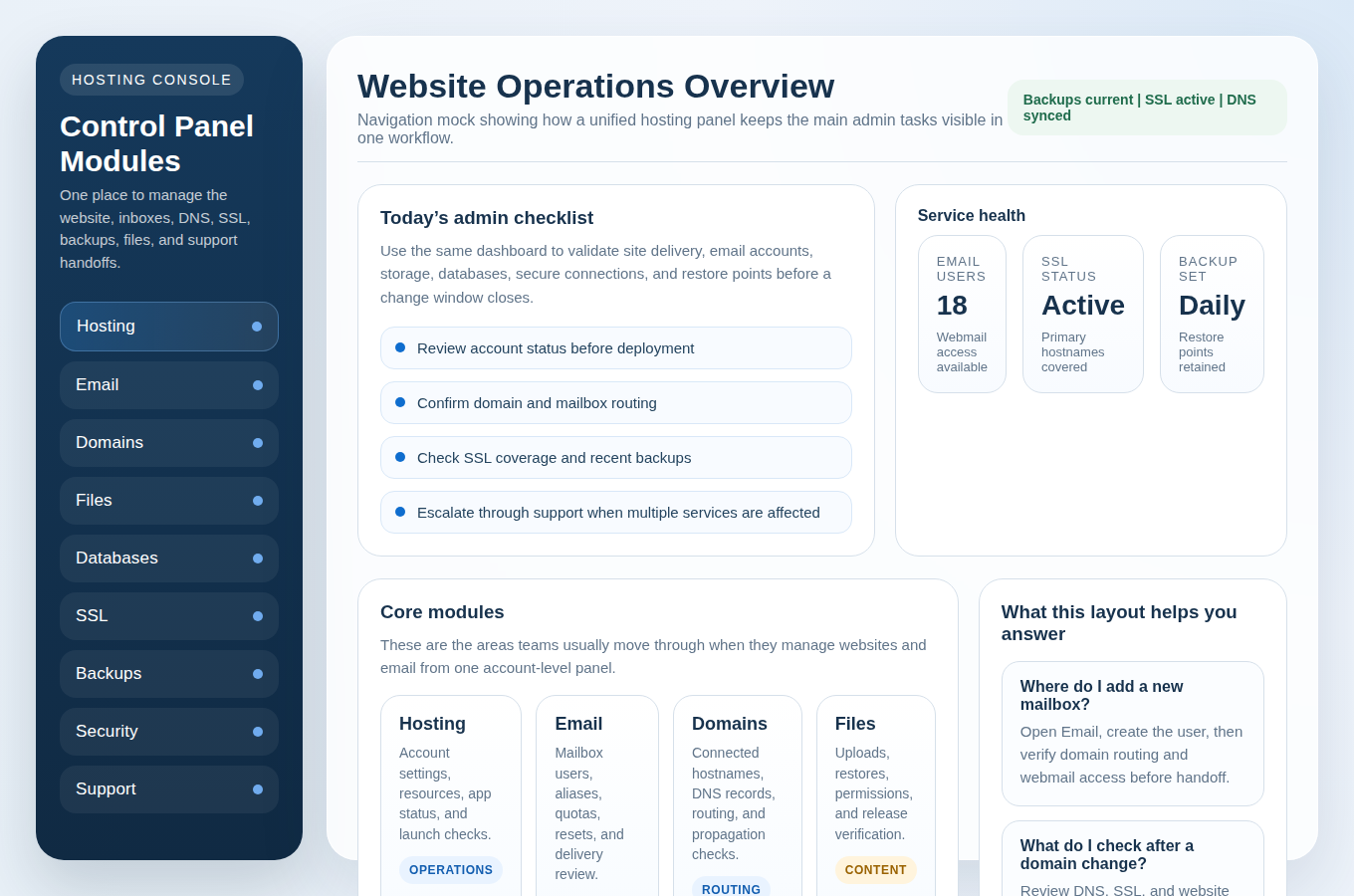
Here is what I want to see before I buy:
- Clear navigation for hosting, email, DNS, and security without hiding settings under vague labels.
- File management tools that make it possible to upload, edit, and remove site files without guessing.
- Database access for creation, export, import, and user management.
- Email controls for creating accounts, aliases, forwarding, and password resets.
- DNS editing so A, CNAME, MX, and TXT records can be changed when needed.
- SSL status that is visible, not buried in a support article.
- Backup and restore tools that are visible in the same place you manage the site.
- Support access that is easy to reach from the account area.
The more of those tasks you can do yourself, the less time you spend explaining basic settings to support later. That is not independence for its own sake. It is operational efficiency. Small businesses rarely suffer from having too much control. They suffer from discovering too late that they do not have enough.
If a provider gives you a control panel but not meaningful settings, ask what the panel is actually for. Some dashboards are little more than a lobby with buttons. You can admire the furniture while the work waits outside.
A useful way to judge the control panel is to imagine a normal week. On Monday, you need a mailbox for a new hire. On Wednesday, you need to change a DNS record. On Friday, you need to restore a file or inspect a database. If the interface supports those tasks cleanly, the feature list is doing real work. If it only sounds comprehensive, the list is hiding the hard parts.
Questions to Ask About Backups, Support, and Account Access
This is where the difference between “managed” and “convenient” becomes obvious. Backups, support, and access rules decide how quickly you recover when something goes wrong. They are the lines that matter after the sale, which is usually when marketing gets modest and reality arrives with a clipboard.
Backups: not just whether they exist
Ask three basic questions: How often are backups taken? How long are they retained? How do restores work? If the answer to any of those is vague, keep asking until it is not. A backup is only useful if it is current enough to matter, retained long enough to recover from the mistake you just made, and simple enough to restore without a half-day of back-and-forth.
Good feature lists often say “daily backups” and stop there. That is not enough. Daily backups are helpful, but they do not tell you whether the backup includes email, databases, or only selected parts of the account. They do not tell you whether the restore process is self-serve or ticket-based. They do not tell you whether you can choose a restore point or whether support chooses it for you.
If the provider has a dedicated Security & Backups page, use it. Compare the promises there with the actual control panel. If the story changes between the sales page and the dashboard, trust the dashboard.
Support: ask about channels, not slogans
Support quality is not measured by the word “24/7” unless you also know how to reach someone and what happens next. Ask which channels are available, how quickly you can expect a response, and whether the plan includes real account-level help or just generic articles. A knowledge base is useful. A knowledge base is not support.
You should also ask whether support can help with hosting, email, DNS, SSL, file access, and restore work from the same place. Many businesses only discover the support boundary after the problem lands. By then the issue is not whether support exists. It is whether support is allowed to help with the thing that is actually broken.
If you want a baseline for support expectations, read the provider’s help pages and compare them to a live support path. Then use the Support page on this site as a reminder of the kind of response path you want: clear channels, useful escalation, and no guessing about what happens when you submit a request.
Account access: who owns the system?
Account access sounds administrative until you need to recover a password, remove a former employee, or hand the site to a contractor. Then it becomes a business control issue. Ask whether you can have separate users, role-based permissions, and a clean way to remove access without changing every setting by hand.
Also ask who controls the domain record, the DNS zone, the email system, and the billing account. Those are not always the same thing. A plan can be technically good and operationally awkward if ownership is spread across multiple logins with no clear handoff process.
The business question is simple: if one person leaves tomorrow, can you still run the site, send mail, and make changes? If the answer is no, the feature list is not the issue. The access model is.
A Simple Comparison Checklist for Small Businesses
Here is the checklist I use when I compare hosting options. It is simple on purpose. The goal is to force a decision, not to create a spreadsheet that feels impressive and then gets ignored.
| Category | Must have | Good sign | Red flag |
|---|---|---|---|
| Storage | Enough room for the site, email, and growth | Clear explanation of what counts toward storage | “Unlimited” with no policy |
| Bandwidth | Enough to handle normal traffic and occasional spikes | Fair-use language explained in plain terms | Hidden throttling or vague caps |
| Accounts, aliases, webmail, and spam controls | Simple management from the control panel | Email is “included” but barely manageable | |
| Databases | Create, export, import, and manage users | Visible tools in the dashboard | Database access requires support for routine changes |
| SSL | Automatic HTTPS with renewal | Certificate status is visible and easy to confirm | SSL exists but is hard to maintain |
| Backups | Regular backups with restore options | Clear retention and restore steps | Backups exist but are hard to restore |
| Support | Responsive help by real channels | Clear response expectations and escalation path | Support is mostly a FAQ with a contact form |
| Access | Ownership and permissions you can manage | Separate users or role control | One shared login for everything |
| DNS | Edit A, CNAME, MX, and TXT records | Changes are easy to find and explain | DNS changes are hidden behind support |
When two providers look similar, I break the tie with one question: which one will require fewer workarounds six months from now? That question usually saves time, money, and the kind of resentment that builds when a “simple” platform turns every routine task into a support request.
For the DNS side of the checklist, keep the domain record visible. If you need a quick public check on the domain, ICANN Lookup helps you verify the domain’s public registration details. If you need to understand how DNS records behave once you edit them, the Cloudflare DNS records guide is one of the clearest references I know.
That is the whole comparison method. No drama. No false certainty. Just a way to sort useful features from noise.
Use the List Like a Buyer, Not a Spectator
Feature lists are only useful if they lead to a decision. I treat them as a filter. First, I remove the language that sounds impressive but says nothing. Then I look for the parts that change how the site is managed day to day: storage, bandwidth, email, databases, SSL, backups, access, and support.
That order matters. A plan can look generous and still be operationally clumsy. Another plan can look modest and still be easier to run because the control panel is clear, the support path is direct, and the backup process does not require a scavenger hunt. You want the second kind.
If you are narrowing your options, move from the feature list to the pages that explain the working parts: Website Hosting for the core plan, Control Panel for management, Email Hosting for mailbox and webmail needs, and Domains & DNS for the settings that make the site and email resolve correctly. If you need a plan or want to talk to a person, use Request Hosting Plan or Contact Support when the issue is operational rather than sales-led.
Read the list for what it lets you do, not for what it sounds like it might do. That one habit will save you from most hosting confusion.
Key Takeaways
- Storage and bandwidth matter only when you know what is included and how limits are enforced.
- Email, databases, SSL, and backups should be manageable, not merely advertised.
- A good control panel makes routine work obvious: files, DNS, accounts, restores, and security.
- Backups and support are useful only if the restore path and response path are clear.
- The best plan is the one that gives your business fewer workarounds and more control.
If you want a calmer buying decision, start with the checklist, then compare the pages, then ask one human question: “What will it actually take to run this every week?” The answer is usually more honest than the feature list.