If your website feels like a drawer full of cables, old receipts, and one mystery USB stick, this guide is for you. Managing files and databases does not have to feel like open-heart surgery for a website. With a sensible control panel and a few habits, you can keep things tidy, fast, and much easier to fix when something goes sideways.
When people search for guidance on website maintenance, they usually ask the same practical questions: Where do my site files live? How do I back up my database safely? What should I touch and what should I leave alone? How do I avoid turning one small change into a very long afternoon? The short version: good file and database management is less about being technical and more about being organized. That is exactly why tools like a control panel matter, and why official guidance such as the WordPress.org plugin management docs and Cloudflare’s DNS overview are worth keeping nearby.
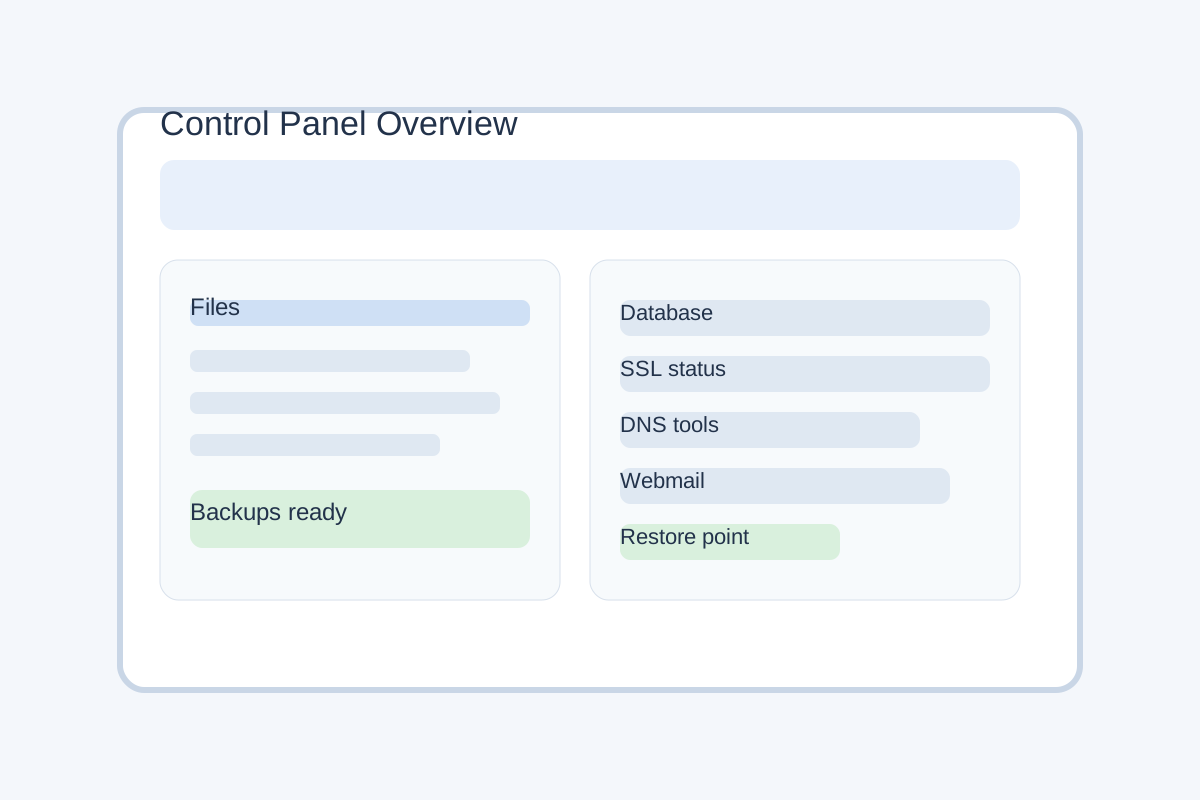
In this article, I will walk through the plain version of website file and database management: why it matters, what common tasks look like, which tools help most, and the mistakes that usually cause trouble. If you want a quick place to start, you can also explore the control panel features that make these jobs less painful.
Why file and database management matters
Your website is usually built from two main parts. The files are the actual website pieces: themes, images, uploads, scripts, and the code that makes pages appear. The database is where the website stores content and settings, like post text, usernames, and configuration data. If the files are the house, the database is the filing cabinet. Neither one likes chaos.
When files are messy, it becomes harder to find the right image, update a theme, or diagnose a broken page. When databases are unmanaged, you can get slow admin screens, failed imports, or a restore process that takes longer than anyone wants. For a useful technical baseline, the WordPress developer documentation on wp-config.php explains how site configuration ties into the rest of the system, while the MariaDB backup and restore overview is a good reminder that recovery planning is not optional.
For small business owners, the real goal is simple: keep the site easy to update, easy to restore, and hard to accidentally break. That means knowing where files are stored, how to organize them, and how to protect the database before making changes.
What this looks like in real life
- You update an image on the homepage and want the old version archived instead of deleted.
- You install a plugin, test it, and then need to remove it cleanly if it causes problems.
- You copy a site to staging and need to move both files and database together.
- You recover from a mistake without guessing which version was the most recent backup.
Step-by-step: how to manage common tasks
Here is the short version of the workflow I recommend: back up first, change second, verify last. That sounds almost too obvious, which is usually how good habits behave. They are boring right up until they save the day.
1. Organize your files before they grow messy
Start by giving your files a predictable structure. A simple pattern works better than a clever one. For example:
/uploads/for images, PDFs, and media files/themes/for the active theme and any custom child theme/plugins/for installed plugins/backups/for exported archives, if your setup allows it
When you upload a file, use names that make sense later. final-logo-v2.png is useful. image123-final-final-reallyfinal.png is the sort of name that starts arguments with your future self.
2. Create and manage databases carefully
Most control panels let you create a database, assign a user, and set permissions in one place. That is enough for most site owners. If your hosting plan supports it, create one database for one website unless you have a specific reason to do otherwise.
A few practical rules:
- Use a strong password for the database user.
- Give the user only the permissions it needs.
- Keep a note of which site uses which database.
- Do not reuse the same database for unrelated projects.
If you need a deeper reference for structure and terminology, the PostgreSQL documentation on database objects is a solid example of how databases are organized, even if your host uses a different system.
3. Back up files and databases before making changes
This part deserves a little extra respect. A backup is only useful if you can actually restore it. So when you create one, ask yourself three questions:
- What exactly is included?
- Where is it stored?
- How would I restore it if needed?
A good habit is to keep at least one recent backup off the main server. If the control panel offers scheduled backups, use them. If it offers manual export, test that too. A backup that exists only in theory is just a comforting rumor.
4. Use staging or a safe copy for bigger edits
If you are about to change a theme, import a large file set, or update database content in bulk, use a staging site when possible. That gives you a place to test changes without risking the live site. If your provider includes staging in the control panel, that is a strong sign the platform expects real-world maintenance, not just hopeful clicking.
5. Verify the result
After each important change, check the live site and the admin area. Look for:
- broken images,
- missing pages,
- database errors,
- slow admin screens,
- unexpected permission problems.
If something looks off, roll back before the problem spreads. That is the whole point of having a restore path ready.
Tools that make the job easier
You do not need a suitcase full of specialist software. For most readers, the best tools are the ones that keep file and database work visible, reversible, and easy to understand.
| Tool | What it helps with | When to use it |
|---|---|---|
| Control panel file manager | Uploading, renaming, moving, and deleting files | Quick edits and basic maintenance |
| Database manager | Creating databases, users, and exports | Setting up new sites or backups |
| SFTP client | Safer file transfers than plain FTP | Moving themes, plugins, or large file sets |
| Backup plugin or server backup tool | Scheduled backups and restore points | Ongoing protection and recovery planning |
| Search-and-replace utility | Updating repeated text in content or settings | Migrations, domain changes, or cleanup work |
If you want to see how a managed environment keeps these tools together, the Website Hosting and Security & Backups pages are a useful next stop. For help using any of these tools, contact Support or reach out directly.
Recommended tools by task
- For file transfers: SFTP is usually the safest everyday choice.
- For browser-based access: a control panel file manager is best for quick fixes.
- For database edits: use the built-in database manager or a trusted administration tool.
- For recovery: use whatever backup tool lets you restore the exact version you need.
Common pitfalls and how to avoid them
Most file and database mistakes are not dramatic. They are small, ordinary oversights that pile up. That is almost worse, because they feel harmless at the time.
Pitfall 1: skipping backups because the change looks small
Even tiny changes can have outsized effects. A plugin update, a media upload, or a theme file edit can ripple through the site. Always back up before meaningful changes.
Pitfall 2: leaving files unorganized
When files are dumped into one folder with no naming pattern, maintenance turns into a scavenger hunt. Use folders, date stamps, and clear names. Your future self will not send flowers, but it will be grateful.
Pitfall 3: editing live data without a test copy
Bulk changes on the live database are risky. Use a staging site or export a copy first. If your host includes a testing environment in the control panel, that is usually the smarter route.
Pitfall 4: not knowing how to restore
A backup is not a plan unless restoration is part of the plan. Test the restore process at least once so you know how it works before you need it in a hurry.
Pitfall 5: giving broad access to too many people
Not every user needs full file or database access. Limit permissions to the people who actually need them. It reduces mistakes and makes accountability much easier.
A simple workflow you can reuse
If you only remember one process from this guide, make it this one:
- Back up the site.
- Make the file or database change.
- Check the result on the live site.
- Store notes on what changed and when.
- Test the restore path periodically.
That sequence is not flashy, but it works. It also turns maintenance from guesswork into a routine, which is much kinder to your nerves.
Conclusion: keep it tidy, test it, and keep moving
Website files and databases do not have to be intimidating. Once you understand what each part does, the work becomes a lot more manageable: organize the files, protect the database, back up before changes, and verify the result afterward. That is the plain version, and the plain version is usually the one that survives real life.
If you want the easiest next step, start with your control panel and confirm three things: where the files are, how the database is managed, and how backups are restored. Then, if you need a hand, use the support resources available on the site.
- Keep file names clear and folders consistent.
- Back up before you make changes.
- Use the control panel tools instead of improvising.
- Test restores before you need them.