A well-designed control panel does not remove complexity from hosting; it puts the moving parts where you can see them before they become an outage, a missed email, or a rushed support request.
Most readers arrive here with practical questions: What can I actually manage from one dashboard? Which tasks belong under hosting, email, files, databases, SSL, or backups? What should I verify before I tell the team a change is finished? And how do I keep routine maintenance from turning into a surprise incident?
The available guidance points in a consistent direction. WordPress.org’s HTTPS guidance is a useful reminder that certificates, redirects, and secure delivery need to line up together, while Let’s Encrypt’s explanation of certificate issuance reinforces the same operational truth from another angle: domain control, validation, and timing matter. In practice, that means the safest hosting workflow is rarely the one with the most dashboards. It is the one where the website, the inboxes, the DNS, and the recovery path stay visible in the same operating picture.
By the end of this guide, you will have a practical map of what a control panel covers, how common day-to-day tasks usually flow, what a small-business or agency team should check before and after a change, and when it is time to move from self-service to Support. The useful takeaway is not abstract: one panel reduces admin time when it reduces guesswork.
Written by Rowan Ellis
Updated May 7, 2026
Terminology That Matters Before You Click Anything
A little vocabulary goes a long way when you are inside a control panel. The goal is not to become a systems engineer. The goal is to know which tool answers which question.
- Hosting: the account area where the website runs, including storage, application settings, and server-side resources.
- Email hosting: the mailbox side of the account, including users, aliases, forwards, quotas, and delivery settings.
- Webmail: browser-based access to the mailbox, useful when a desktop or mobile client is unavailable.
- Domains and DNS: the settings that decide where the website and email should point, and which hostnames are active.
- File manager: the place to upload, inspect, replace, or restore website files.
- Database manager: the tool used to create databases, assign users, confirm credentials, or work with application data.
- SSL: the certificate layer that enables HTTPS and helps visitors reach the site securely.
- Backups: the restore points that let you roll back files, databases, or entire sites after a failed change or incident.
- Logs: activity records that help explain what changed, what failed, or what reached the server.
The practical distinction is simple: hosting answers where the site lives, email answers how the inboxes work, DNS answers how traffic gets there, SSL answers whether the connection can be trusted, and backups answer how you recover when a change misfires.
What a Unified Control Panel Covers
A strong control panel is less about visual neatness than operational continuity. When the same dashboard exposes your Website Hosting, Email Hosting, Webmail, Domains & DNS, Security & Backups, and account-level support path, you can treat a change as a workflow instead of a scavenger hunt.
| Module | What You Manage | Why It Matters Day to Day |
|---|---|---|
| Hosting | Site settings, app environment, resource use, account status | Keeps the live website visible before maintenance or deployment work begins |
| Mailbox users, aliases, forwards, quotas, resets | Reduces the risk of handling email separately from domain or hosting changes | |
| Webmail | Browser access to business inboxes | Provides a clean fallback when one device or mail client is the problem |
| Domains & DNS | Domain connections, records, hostnames, propagation checks | Shows where traffic and mail should go before and after a change window |
| Files | Uploads, edits, restores, permissions, directory structure | Makes it easier to confirm whether the right code or content actually reached production |
| Databases | Database creation, users, credentials, imports, exports | Supports application updates, migrations, and rollback planning |
| SSL | Certificate issuance, status, hostname coverage, renewal checks | Prevents the familiar problem where a site loads but still throws trust warnings |
| Backups | Restore points, retention, restore options | Turns recovery into a process instead of a last-minute improvisation |
| Security and Logs | Access history, login activity, error logs, audit clues | Helps explain what changed and when to escalate |
| Support | Escalation path, tickets, account help, coordinated change windows | Gives the team a defined next step when a task should stop being self-service |
The central benefit is not merely convenience. It is context. If a website stops loading after a domain update, you can move from DNS to SSL to files to logs without handing the problem across four vendors and three guesses.
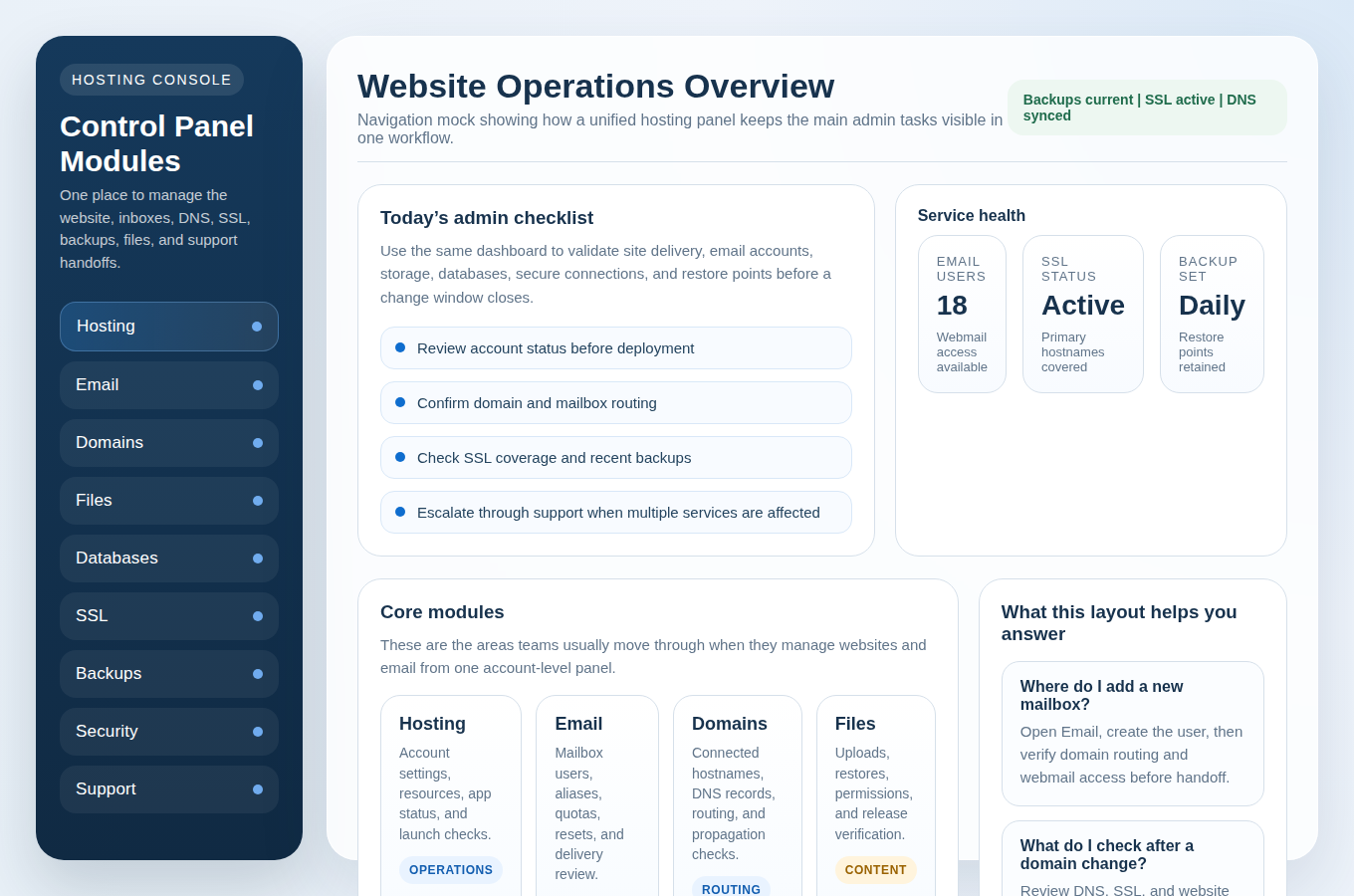
If you are documenting this process for staff or clients, a useful companion asset is a labeled screenshot-style navigation graphic that maps the main modules in plain terms: Hosting, Email, Domains, Files, Databases, SSL, Backups, and Security. The value is not design polish. The value is shortening the time between “something is wrong” and “we are in the right place to check it.”
Common Tasks and What They Look Like in Practice
This is where a single control panel usually earns its keep. The day-to-day tasks are not glamorous, but they are the tasks that affect uptime, customer replies, and internal admin time.
1. Add an Email User Without Losing Track of the Domain
Suppose a new employee starts on Monday and needs a domain-based mailbox before client conversations begin. In a unified panel, the workflow is conceptually straightforward:
- Open the email module and create the user or mailbox.
- Set a quota, temporary password, or onboarding policy.
- Confirm aliases or forwards if the role requires them.
- Check that the domain is already connected to the correct mail routing.
- Verify whether the user will work through Webmail, a local mail client, or both.
The small but important advantage is that mailbox creation does not happen in isolation. If the domain is mid-migration or the DNS is incomplete, the panel should make that visible before the first support ticket arrives saying mail is missing.
Example: an agency adds [email protected] for a new client launch. The mailbox itself takes minutes. The real check is whether the domain, forwarding rules, and contact forms are all aligned so the address receives live messages immediately.
2. Connect a Domain and Confirm the Right DNS Dependencies
Domain work is where separate dashboards often create avoidable downtime. A control panel helps because it makes the question concrete: are you changing the whole zone, a few records, or simply attaching a domain to an existing account?
A careful domain workflow usually includes these checkpoints:
- Confirm which hostnames are needed: root domain,
www, subdomains, mail hostnames, or staging URLs. - Match the record change to the actual goal instead of reaching for a full nameserver switch by habit.
- Check whether website routing and email routing should move together or remain separate.
- Review SSL implications before announcing the domain is “done.”
This guide is not a replacement for the site’s dedicated Domains & DNS page, and it should not be. The useful takeaway here is narrower: the control panel is the place where DNS changes should stay adjacent to the services they affect.
Example: a small business points its website to a new hosting account but intends to leave email exactly where it is. The safe move is usually to update only the records that affect the website, then verify that MX and related mail records were not disturbed.
3. Install or Confirm SSL Before You Declare the Site Live
The available evidence from WordPress.org and Let’s Encrypt leads to the same practical conclusion: HTTPS only feels automatic when the domain, hostnames, and certificate status already agree. In the control panel, the certificate view should answer three questions quickly:
- Is a certificate issued for the correct hostnames?
- Has the domain been connected in a way that allows validation?
- Are redirects and canonical settings aligned once HTTPS is active?
A routine SSL workflow is usually conceptual rather than deeply technical:
- Attach the domain to the hosting account.
- Issue or confirm the certificate.
- Check the site on the live hostname.
- Confirm that non-secure and alternate hostnames redirect correctly.
- Recheck forms, login screens, and mixed-content warnings if the site uses older assets.
Example: a brochure site loads on the root domain but the www version serves a warning because the certificate or redirect policy was never finished. A good control panel exposes that mismatch before the team declares the launch complete.
4. Create a Database, Assign a User, and Keep File Changes in Context
Most small teams do not think about databases until they need one urgently: a new application install, a migration, a restore, or a staging task. That is exactly why the database tool should live near files and backups, not in a separate forgotten product.
A practical database workflow often looks like this:
- Create the database and name it clearly.
- Create or assign a database user with limited, relevant access.
- Confirm the application configuration matches the new credentials.
- Check the file manager to verify the site files and configuration were updated in the same change window.
- Take or confirm a backup before high-risk imports, plugin updates, or content migrations.
The useful principle is that files and databases should travel together in your head, because they often travel together in reality. A file restore with no database rollback can leave a site half-restored. A database import with stale files can break the front end just as effectively. A single panel does not remove this dependency, but it makes the dependency harder to miss.
Example: a team uploads a restored theme or application package through the file manager, then finds the site still failing because the database user was never updated in the configuration file. Keeping both tools in one path shortens the diagnosis.
5. Upload or Restore Files Without Guesswork
File management is the part of hosting work that feels deceptively simple. You can see directories, upload assets, unzip packages, and replace old files. The risk is not in the interface. The risk is doing file work without enough context.
A disciplined file workflow usually includes:
- Confirming you are in the right environment before uploading to production.
- Checking permissions rather than changing them broadly out of frustration.
- Keeping a restore point available before replacing core site files.
- Matching file changes to the database or application version that expects them.
That is why file tools belong in the same mental map as Control Panel access and Security & Backups. The file manager is useful, but it is safest when it sits inside a broader rollback plan.
6. Check Backups, Restore Points, and Logs Before a Small Problem Grows
Backups are a comfort only when you know what they include, how recent they are, and how the restore actually works. A good panel should help you answer:
- Are backups automatic, manual, or both?
- Do they cover files, databases, or the full account?
- What restore points exist before today’s change?
- Where do you check logs if the site or inbox behaves unexpectedly afterward?
Example: a plugin update appears harmless, but a core contact form stops sending mail an hour later. The panel can shorten the diagnosis by keeping logs, backup options, mailbox context, and escalation close together rather than forcing a new investigation in each separate system.
A Short Best-Practices Checklist
Context matters more than any universal template, but the day-to-day operating checklist is usually stable enough to keep nearby.
- Use least-privilege access: give each user the minimum permissions needed for the task rather than broad control panel access by default.
- Set a backup cadence that matches business risk: the right schedule depends on how often content, orders, forms, or databases change.
- Check SSL status after domain or routing changes: certificate coverage is not something to assume after DNS work.
- Manage passwords and mailbox users deliberately: role-based accounts, removals, and resets should be documented when people join, change responsibilities, or leave.
- Keep file and database changes paired in your process: if one changes, verify whether the other also needs review.
- Use logs before guessing: a few minutes in the right log is often worth more than half an hour of repeated retries.
- Keep a written handoff note: if the site is maintained by more than one person, record what changed, when, and why.
If the site is code-driven, a lightweight operational record in GitHub or another versioned workflow can help keep application changes separate from hosting-account changes. That is not mandatory for every brochure site, but it becomes valuable as soon as multiple people touch the same environment.
Mini FAQ: The Questions Teams Ask When the Panel Becomes the Source of Truth
Do I really need one control panel for both website and email management?
Not always, but the combined view is often the safer choice for small businesses and agencies because website, DNS, SSL, and mailbox tasks regularly affect each other. Separate tools can work well; they simply demand more process discipline.
What should I check first if a domain connects but email stops working?
Start with the email-related DNS records and mailbox routing, then confirm whether the domain move unintentionally changed mail settings. The point is not to keep clicking; it is to confirm which service moved and which one should have stayed put.
How often should I review backups and SSL?
Review them before major changes, after major changes, and on a regular schedule that matches how important the site is to daily business operations. The exact cadence varies. The habit of checking does not.
Where can I find the site’s broader hosting answers?
The site’s full FAQ is the best place to start for common service questions, while Contact is the right path when the issue is specific to your account or deadline.
Why One Panel Usually Saves More Time Than It Advertises
The business argument for a unified control panel is modest but important. It does not promise that every change will be easy. It reduces the number of places where an ordinary task can go missing.
That matters for small businesses because one missed SSL check can interrupt trust, one overlooked MX record can interrupt email, and one undocumented file change can turn a simple restore into an afternoon. It matters for agencies because handoffs happen constantly: client request to support queue, launch checklist to DNS update, mailbox onboarding to webmail access, content change to backup confirmation.
When the hosting foundation is stable and the team later wants custom portals or internal admin tools around that environment, it is usually wiser to separate the infrastructure decision from the application-build decision. For teams planning that second track, outside custom web development services can be evaluated on their own merits after the hosting workflow is already under control.
Manage Hosting or Escalate Cleanly
If you already know the task and the dependencies are clear, the next step is to Manage Hosting from the account workflow that keeps website, email, DNS, SSL, and backups visible together.
If you are evaluating a new environment, migration window, or account setup, the better next step is to Request Hosting Plan so the scope is defined before production settings move.
Contact Support When the Task Stops Being Routine
There is a point where discipline means escalation, not more clicking. Use Contact Support when:
- the task affects both website delivery and email delivery,
- the domain is live and the change window is time-sensitive,
- SSL, DNS, files, and databases are all implicated at once, or
- the available evidence in the panel is not enough to explain what changed.
The useful conclusion is straightforward: one control panel is valuable when it becomes the place where routine hosting work is validated, documented, and escalated with less ambiguity. That is how it saves admin time, and that is how it reduces downtime risk.