Business email only feels simple when the access method matches the way your team actually works. Choose the wrong one, and you inherit a slow drip of avoidable problems: missing folders, confused logins, shared inbox workarounds, and the classic “it only works on my laptop” trap.
Most small businesses ask the same questions once professional email becomes part of daily operations. Is webmail enough, or should everyone use a desktop or mobile mail app? What should sync across devices? Which security controls should the hosting provider handle? How do you keep onboarding, offboarding, aliases, and shared inboxes orderly instead of improvised?
This guide is the decision version of that conversation. It will help you choose between webmail, an email client, or a hybrid setup, and it will define what “full control” should mean from your hosting provider without turning the article into a DNS or SSL tutorial. If you want the broader service picture first, start with the core offer on resortwebmarketing.com.
Written by Grant Vale
Updated May 20, 2026

Quick Answer: Webmail, Email Client, or Both?
Here’s the decision rule. Choose webmail first when you need simplicity, browser access, and consistent behavior across devices. Choose an email client when specific users need a deeper desktop workflow, offline access, or tighter integration with the rest of their workstation. Choose a hybrid setup when shared team access needs to stay simple while a few power users need more control.
| Best Fit | Choose This If | Main Tradeoff |
|---|---|---|
| Webmail | Your team changes devices often, relies on shared inboxes, or wants the fewest setup steps | Less local workflow customization and less comfortable offline use |
| Email client | Specific users need desktop habits, offline reading, local search, or integrated workflow tools | Correct IMAP/SMTP setup and sync behavior matter more, and mistakes are easier to hide for a while |
| Hybrid | You want webmail for baseline access and shared mailboxes, with clients for users who genuinely benefit from them | You need a documented setup standard so users are not all improvising differently |
Either option can be secure. The difference is operational exposure. Webmail reduces device-level setup problems because the mailbox lives in the browser. An email client can be just as safe, but only if your hosting supports secure IMAP/SMTP, reliable folder sync, and a clear recovery path when credentials or devices change.
Get Started if you need the simplest baseline. Use Manage Hosting if your mailboxes already exist and you want to verify the current setup before changing anything.
What “Full Control” Should Mean for Business Email
Full control should mean more than “you can log in somewhere.” A business mailbox is part of an operating system: people join, leave, share duties, forward messages, reset passwords, hit storage limits, and occasionally lock themselves out at the worst possible time. A usable hosting platform keeps those tasks visible and manageable.
| Area | What You Should Control | Why It Matters |
|---|---|---|
| Accounts | Create, disable, reset, and review mailbox users | Onboarding and offboarding stay predictable instead of becoming support archaeology |
| Aliases | Add role-based addresses such as sales@ or billing@ without creating unnecessary extra inboxes |
Teams can keep public-facing addresses stable even when responsibilities shift |
| Forwarding | Set forwarding rules deliberately and review them later | Unseen forwarding chains are a common source of missed mail and accidental loops |
| Spam and filtering | Adjust mailbox or domain-level filtering controls | Users need some ability to tune false positives without weakening the whole domain |
| SSL/TLS | Use secure transport for webmail and client connections | Business email should not depend on plain-text connections or vague security defaults |
| Backups and recovery | Understand what can be restored, who can request it, and how long it takes | Recovery matters more than promises once a mailbox or setting is changed incorrectly |
If your provider offers Email Hosting but hides mailbox controls, forwarding, or recovery details behind unclear support handoffs, that is not full control. It may still be usable, but it is not the minimum safe setup for business operations.
Webmail Essentials: What to Expect Day to Day
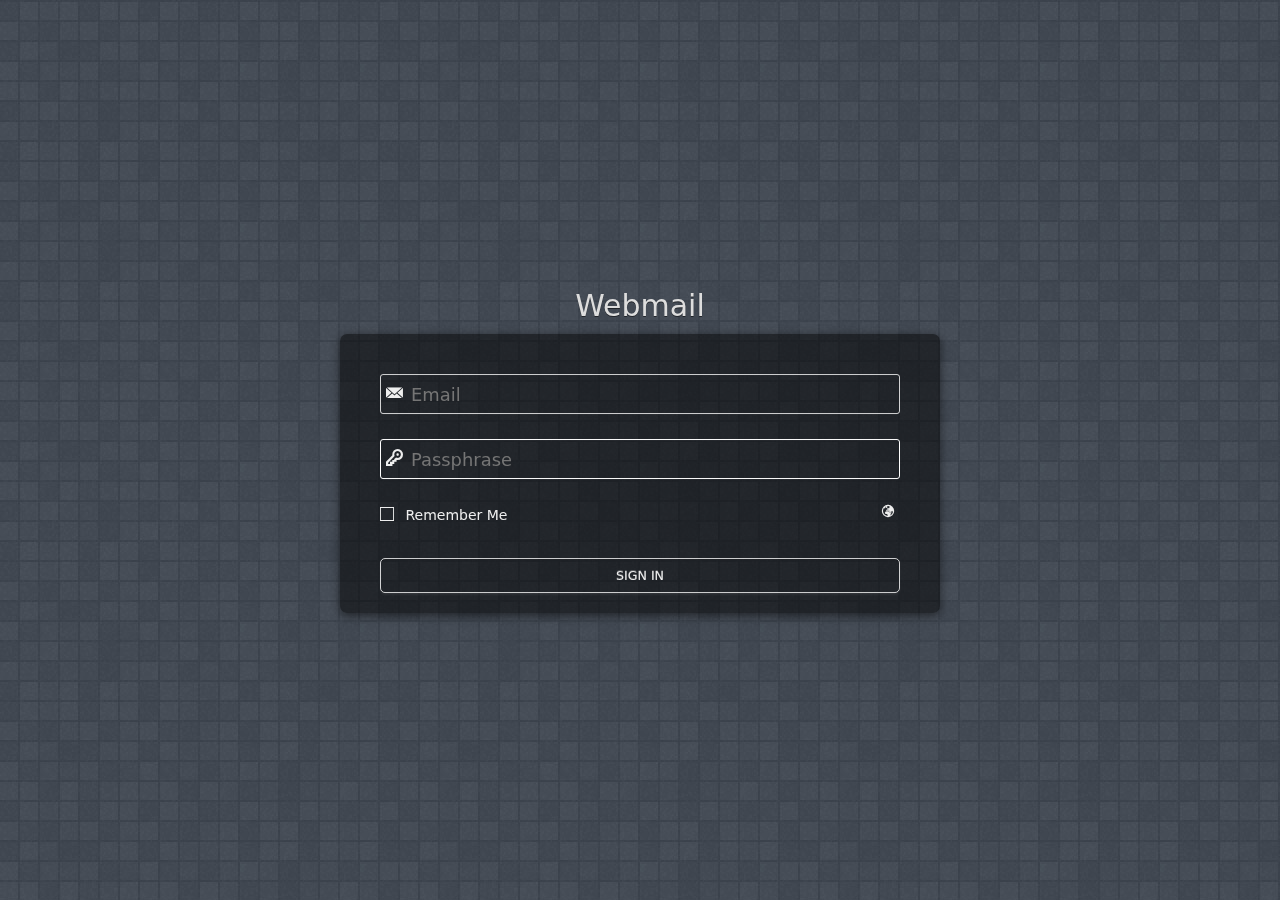
Webmail is usually the safest first choice for small teams because the environment is consistent. Users open a browser, sign in, and see the same mailbox state without maintaining app-specific settings on every device.
These are the day-to-day behaviors worth checking:
- Login access: the sign-in path should be obvious, and session behavior should make sense on both desktop and mobile.
- Folders: drafts, sent items, archive folders, and custom folders should behave consistently from session to session.
- Attachments: uploads should work reliably within your plan limits, with clear feedback when size limits are reached.
- Search: users should be able to search across current folders without guessing whether webmail is only looking at one view.
- Contacts: address books should be usable for normal business work, even if they are less elaborate than a desktop client’s ecosystem.
- Mobile usability: webmail should remain readable and workable on a phone or tablet when someone is away from their main device.
Webmail is also useful as a control test. If a user says mail is failing in their desktop client, a quick login to Webmail tells you whether the mailbox itself is healthy before you start troubleshooting the device. That alone saves time. When the browser works and the client does not, you have narrowed the failure mode.
Where webmail usually wins:
- Shared inboxes that more than one person needs to check during the day
- Admin and operations users who move between devices or locations often
- Quick triage during outages, password resets, or access handoffs
- Teams with low tolerance for device-specific setup errors
Where webmail starts to feel limited is heavy personal workflow. Some users want keyboard-heavy routines, local archiving, deeper offline work, or integration with their desktop calendar and task systems. Those users may be better served by a client, provided the server side is configured properly first.
Email Client Essentials: What You Must Verify First
An email client adds comfort and control for some roles, but it is not a shortcut. It works well when the hosting side exposes the right IMAP and SMTP details clearly, and when the client is configured to respect them.
At a high level, IMAP handles synchronized mailbox access. That means mail, folders, read state, and flags should remain consistent across supported devices. SMTP handles outbound sending. That means the client should authenticate properly, use secure transport, and send as the mailbox or approved alias the user is supposed to represent.
Before you commit to clients, verify these points in your Control Panel:
- The mailbox exists and the credentials are current.
- IMAP is the intended sync method, not an older download-only pattern.
- SMTP requires authentication and secure transport.
- The sending identity matches the mailbox or alias the user is supposed to use.
- The account is allowed to use the necessary services from the current network or device context.
What should sync when the setup is sound:
- Mailbox contents
- Folder structure
- Read and unread state
- Flags or stars
- Sent items, if the client is configured to use the server-side sent folder correctly
What may still vary by client:
- Local contact handling and local archives
- Rules or filters stored only on one device
- Draft behavior if the client uses a local draft path instead of the mailbox draft folder
- How quickly folders refresh or reindex
The goal is not to make every client identical. The goal is to keep them consistent enough that users do not lose track of sent items, duplicate folders, or old credentials. If the mailbox works in webmail but the client keeps drifting, stop adjusting random settings and verify the server-side details first.
Security Checklist: Choose the Safer Option for Your Team
The safer email option is the one your team can operate correctly under normal pressure. Security is not just the protocol. It is the combination of secure transport, clean permissions, and a recovery path people will actually use.
- Require SSL/TLS for every connection. Webmail and email clients should both use secure transport. If the setup guidance is vague here, pause and verify it before rollout.
- Use unique passwords per user. Shared credentials hide accountability and complicate offboarding.
- Keep permissions narrow. Mailbox users should not automatically become domain or email administrators.
- Document your recovery path. Know how to reset access, who can approve changes, and when to escalate to Support.
- Be careful on shared devices. Webmail on a borrowed or public device needs disciplined session handling, not optimism.
- Check mailbox and alias ownership regularly. Old forwarding rules and forgotten aliases are quieter risks than dramatic breaches, but they cause real problems.
If your site runs on WordPress.org, treat email security as part of website operations too. Password resets, contact forms, account notifications, and order messages all depend on email behaving predictably. The website and the mailbox rarely fail in isolation for long.
For the wider account-safety view, review Security & Backups after you confirm the basic mail workflow.
Operational Considerations: The Part Teams Usually Forget
Most email problems are not caused by protocols. They are caused by people joining, leaving, covering for each other, or inheriting a mailbox with no written rules.
Onboarding should be quick and orderly. A good hosting setup lets you create the mailbox, assign aliases, define who needs access, and confirm the baseline login method without a string of ad hoc exceptions. Offboarding should be just as deliberate: disable access, preserve mail flow, decide whether forwarding is temporary, and review shared inbox permissions so old access does not linger.
Shared inboxes deserve special discipline. Decide in advance:
- Who is allowed to read and reply
- Whether replies come from the shared identity or an individual mailbox
- How coverage works during time off or staffing changes
- Who can change forwarding, aliases, or passwords
This is where a hybrid model often makes the most sense. Keep shared access in webmail for consistency. Let power users add an email client only after the server-side settings are verified. That reduces friction without forcing every user into the same workflow.
It also helps to keep your operating notes somewhere the team can actually find them. Many teams use a private internal wiki or a lightweight repo on GitHub for mailbox naming rules, alias ownership, onboarding steps, and the approved IMAP/SMTP settings. The tool matters less than the habit.
If you later need a small internal handoff tracker for mailbox requests, alias approvals, or support escalation notes, a simple web app generator can be a reasonable starting point, and Flatlogic is one broader reference for that kind of internal workflow tooling. That is an operations note, not a hosting endorsement.
Reliability and Deliverability: What Good Email Hosting Looks Like
Good email hosting should feel predictable. Not perfect, not magical, just predictable. Users should know where to look when sending fails, where bounces appear, and how to confirm whether the issue is mailbox access, sending identity, storage, or domain configuration.
These are the reliability signals worth expecting:
- Clear status visibility: you can tell whether the mailbox exists, whether the user is active, and whether the service itself looks healthy.
- Predictable bounce handling: failure messages are visible enough that the sender or admin can act on them.
- Consistent sending identity: users send as the mailbox or approved alias they actually own, not an improvised address that confuses replies and authentication.
- Predictable fallback behavior: when a mailbox is full or disabled, the outcome should be understandable rather than silent.
- Support escalation: users know what information to provide when the issue is beyond normal self-service.
Deliverability problems often look random from the user side. They usually are not. If mail sends from one device but not another, or replies come back to the wrong mailbox, check the sending identity and authentication path before blaming the whole domain. If incoming mail is inconsistent, verify the domain and DNS layer at a high level rather than changing client settings first. Resources from Cloudflare and ICANN Lookup are useful when you need to confirm record context or domain ownership without turning this guide into a full DNS workshop.
When the problem is no longer routine, use the shortest path instead of a long experiment. Contact Support with the mailbox address involved, the approximate time of failure, whether webmail works, and whether the issue affects sending, receiving, or both.
Common Pitfalls That Cause Business Email Headaches
- Mismatched ports or protocols: the client is configured for the wrong secure transport or outdated settings, so the mailbox works in webmail but not on the device.
- DNS misalignment: mailbox settings look right, but domain records do not match the intended mail route.
- Client sync drift: folders, sent mail, or flags stop matching because the client is saving data locally or using the wrong server-side folders.
- Outdated credentials: the password changed, but one device kept retrying with the old one and created noise.
- Over-permissioning: too many users can edit mailbox or domain settings, so small changes have unclear ownership.
- Forwarding sprawl: rules were added over time, nobody reviewed them, and important messages now take an indirect route through several inboxes.
Most of these problems share one pattern: the setup worked once, so nobody documented it. That is why the boring operational habits matter. Verify the control panel state, keep one approved baseline, and change one thing at a time.
Recommendation Matrix: Choose the Path That Fits the Role
| Role or Team | Recommended Setup | Why |
|---|---|---|
| Owner / general admin | Hybrid | Webmail provides reliable access from anywhere; a client can be added if that person handles a high mail volume daily |
| Support or front desk | Webmail | Shared inbox work is easier when everyone sees the same browser-based state |
| Sales or account management | Hybrid | Webmail is useful for fallback and shared visibility, while a client may help with personal workflow and follow-up habits |
| Finance or billing | Webmail or tightly managed hybrid | Consistency and auditability matter more than personal customization |
| Technical or power users | Email client | Desktop workflow, offline access, and local organization can be worth it if the server-side settings are documented correctly |
| Shared mailbox owners | Webmail | Browser access reduces the risk of one device drifting out of sync with the team view |
If you are unsure, start with webmail as the baseline. Once that is working cleanly, add email clients only for users who can explain why they need them. That sequence keeps the recovery path clear and avoids introducing device-specific failures before the server side is stable.
Get Started if you are setting up business email from scratch. Use Manage Hosting if the mailboxes already exist and you need to verify the settings. Use Contact Support when a working mailbox suddenly stops behaving consistently. If you need the account side of the service clarified first, Request Hosting Plan and review what is included before you migrate users.
Final Takeaway
Webmail is usually the right default because it reduces setup burden and keeps access consistent. An email client becomes the better option only when a user has a real workflow reason for it and the hosting platform supports secure IMAP/SMTP, reliable sync, and controlled permissions. In practice, many small businesses do best with both: webmail for stability and shared access, clients for the few users who can benefit from deeper local workflow.
The point is not to choose the more technical option. The point is to choose the option your team can run cleanly, recover quickly, and support without guesswork.